Your PC, in plain sight.
Aurora watches your PC live and day after day, and tells you in plain words whether it's doing well, what to do and what changed — right down to Windows updates. Free, no account, and it sends nothing unless you ask.
The real Aurora, filmed in demo mode: nothing staged, nothing drawn for the occasion.
Your fans, always there
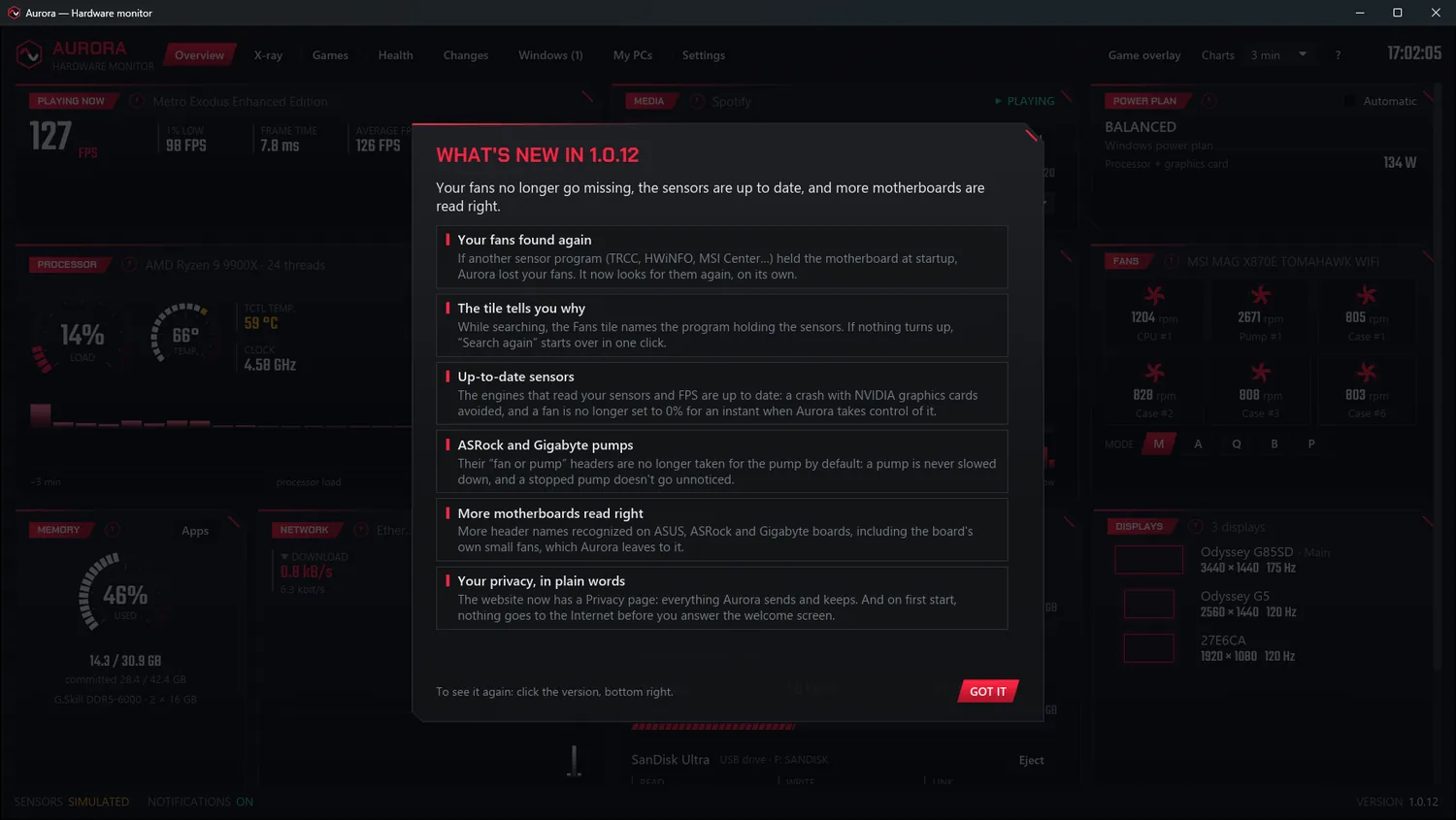
Aurora finds your fans again when another program holds the sensors, and reads ASRock, Gigabyte and ASUS boards better. Its sensor engines are up to date.
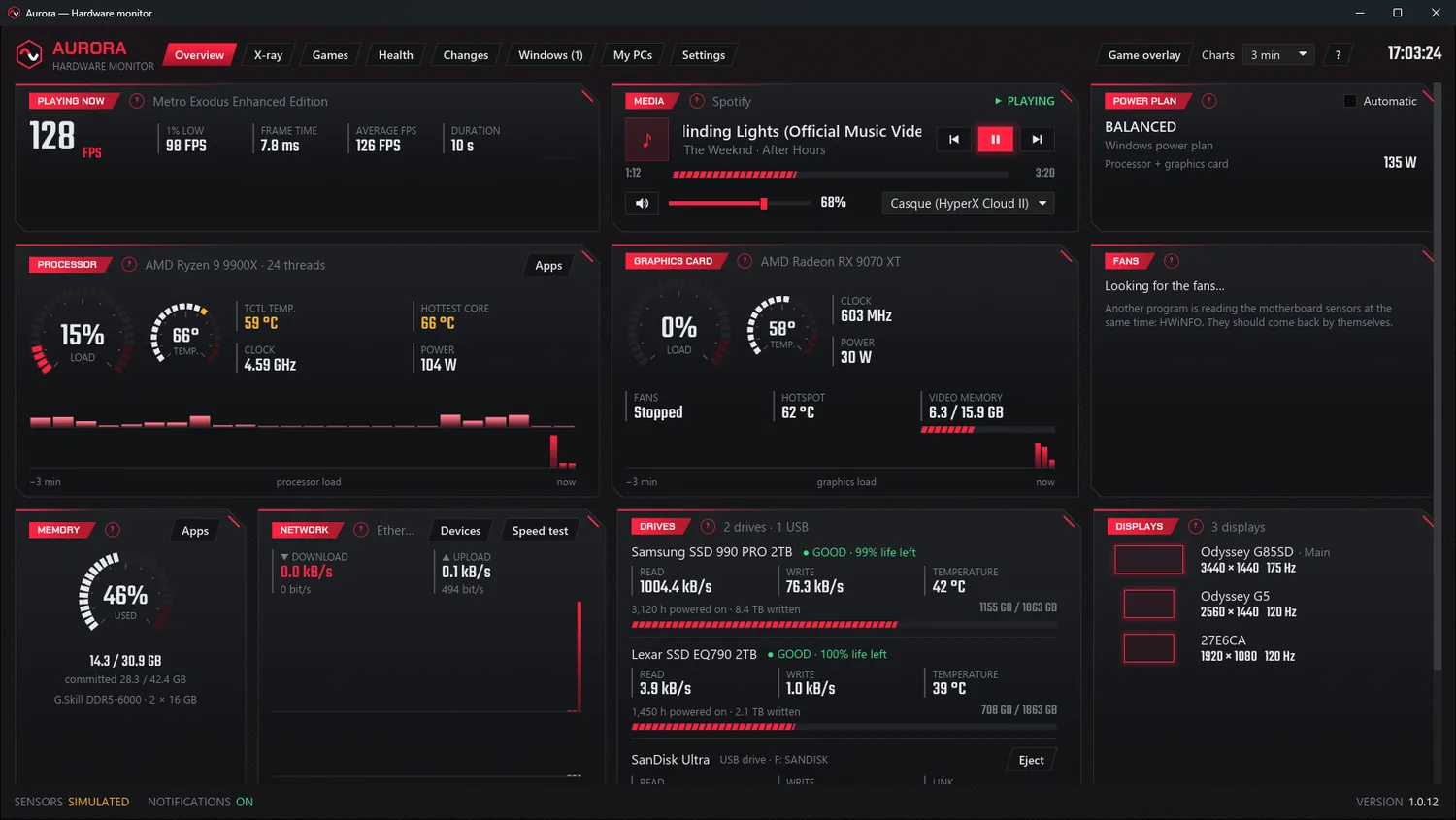
They no longer go missing
If another sensor program holds the motherboard at startup, Aurora looks for your fans again on its own, and the tile tells you why.
- Thermalright's TRCC, HWiNFO, MSI Center…: the tile names the one holding the sensors, and your fans come back on their own.
- If the search ends without them, “Search again” starts over in one click, in the X-ray too.
- Up-to-date sensor engines: a crash with NVIDIA graphics cards avoided, and a fan no longer set to 0% for an instant when Aurora takes control of it.
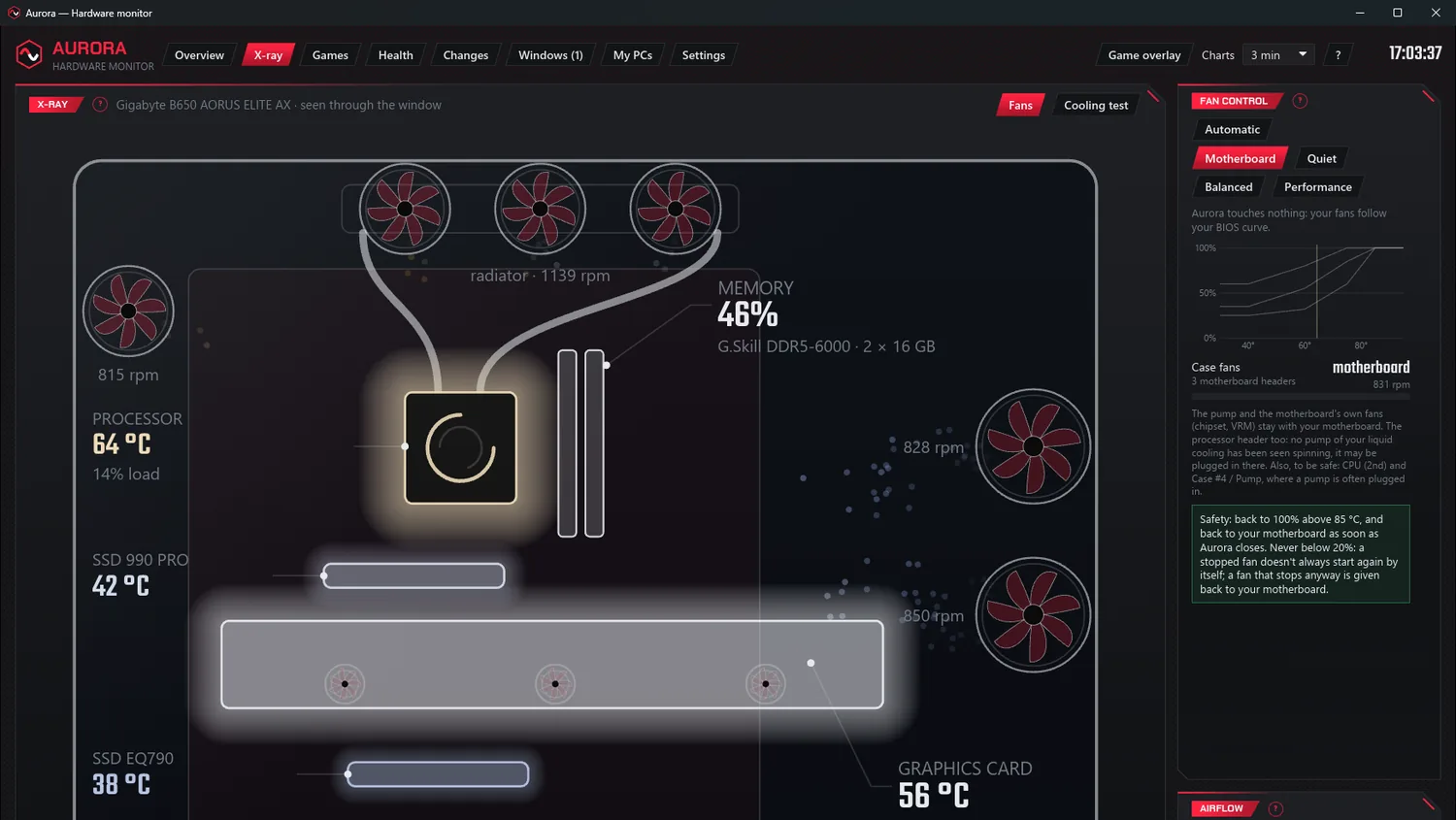
Pumps never slowed down
Aurora now knows the headers of ASRock and Gigabyte boards: those where a pump is often plugged in stay with the motherboard, to be safe.
- “Fan or pump” headers, CPU_OPT and CPU_FAN2/WP are no longer taken for the pump by default, and a stopped pump doesn't go unnoticed.
- You can point out your pump in “Your fans”, in the X-ray.
- More header names recognized on ASUS, ASRock and Gigabyte boards; VRM and chipset fans stay with the motherboard.
Your privacy, in plain words
The website now has a Privacy page: everything Aurora sends (three things only) and everything it keeps, in plain words.
- On first start, nothing goes to the Internet before you answer the welcome screen.
- Windows now shows Aurora's publisher in “Installed apps”.
- A silent install (winget, a script) no longer starts Aurora on its own; the network update still restarts it.
It no longer just measures: it understands.
Its tabs turn numbers into answers: is my PC doing well, what changed, why is my game struggling — and which Windows update to install.
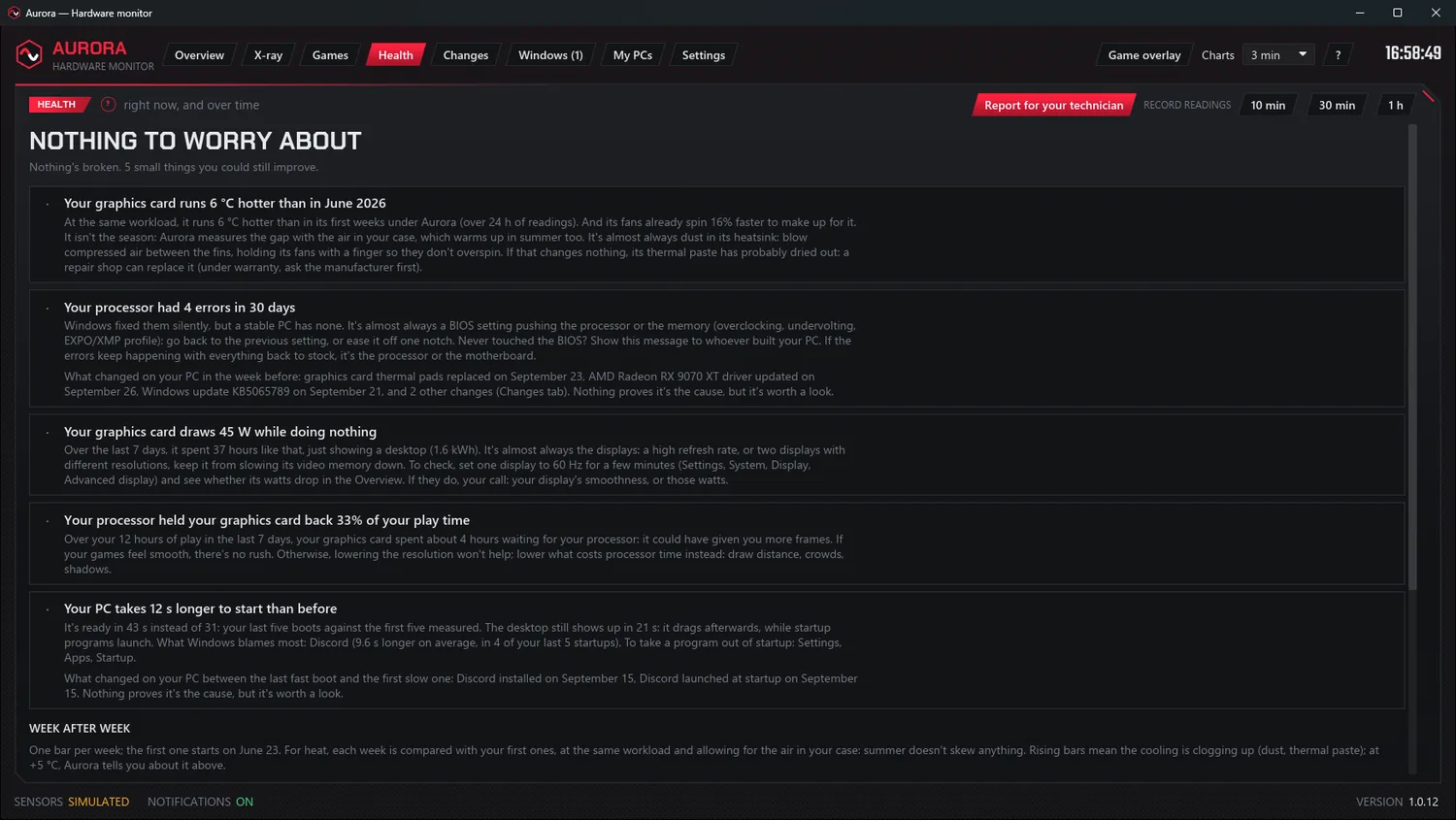
Is your PC OK? Aurora tells you.
A check-up redone every second that only talks about what is wrong, most serious first — and also tells you when all is well.
- Your build: a display plugged into the motherboard or set too low, a graphics card in the wrong slot.
- Drives: SMART wear, running out of space, heat.
- A fan or the pump giving up, a BIOS battery getting weak.
- A power supply starting to sag: its 12 V tracked under load, if your motherboard measures it.
- What Windows logs without a word: hardware errors, blue screens, sudden shutdowns.
- Heat creeping up over the months: dust shows before it costs you.
- A full report for whoever helps you remotely, ready to send.
- A notification — and an alarm if you want — when it is urgent.
“It taught me that my graphics card draws 50 W while doing nothing: my three displays keep it from slowing down.” — Denis
The time machine
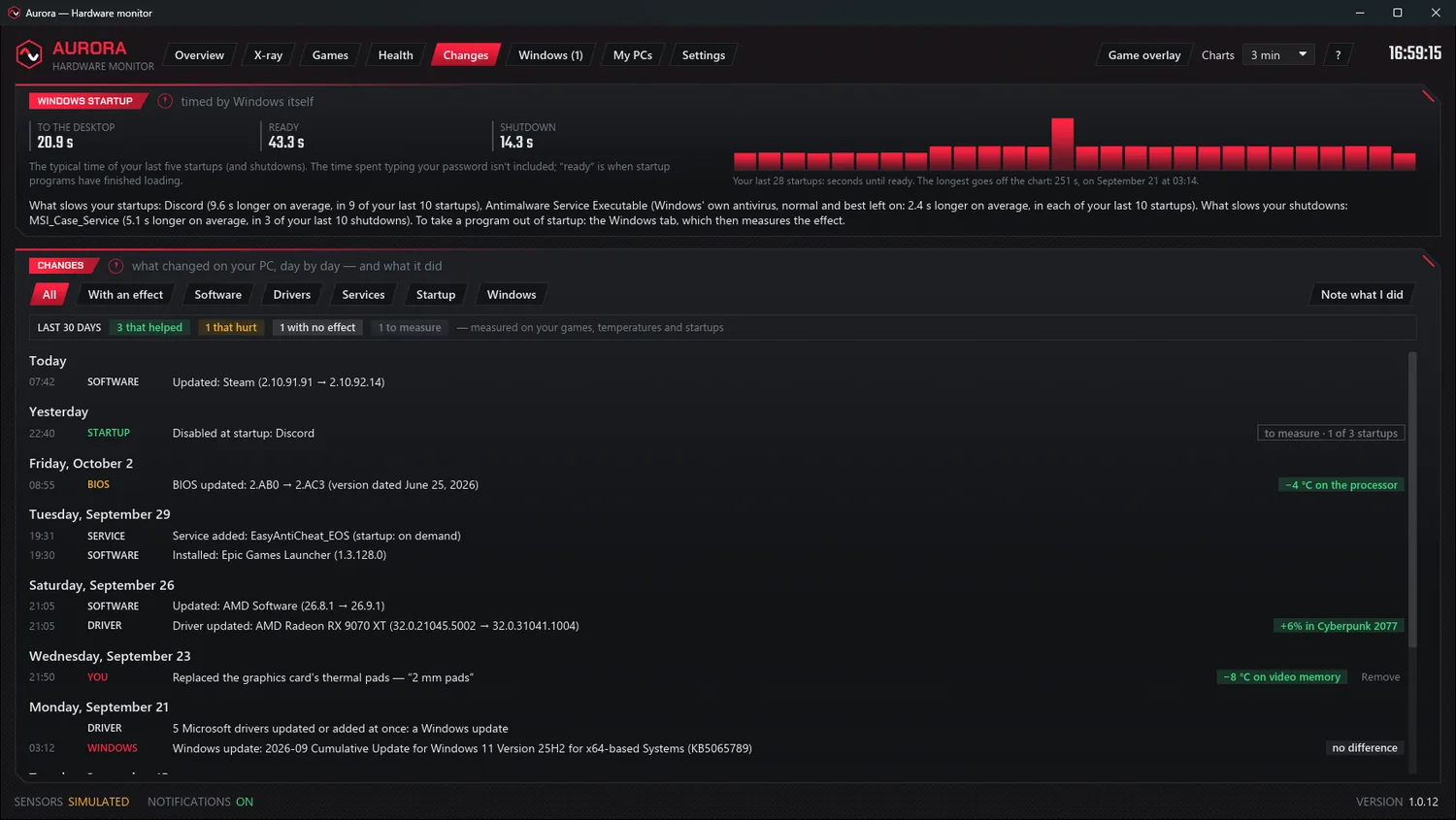
Your PC has been slow since Tuesday? Aurora takes a snapshot of it every ten minutes and notes what changes: software, drivers, services, startup programs, Windows updates, BIOS.
- In the Health tab, a problem comes with what changed just before it.
- The effect of every change, measured before and after: your games, your temperatures, your startup.
- Windows startup timed — to the desktop, ready, shutdown — and who slows it down.
- The noise filtered out: drivers that come and go, Defender updates.
Your games, over time
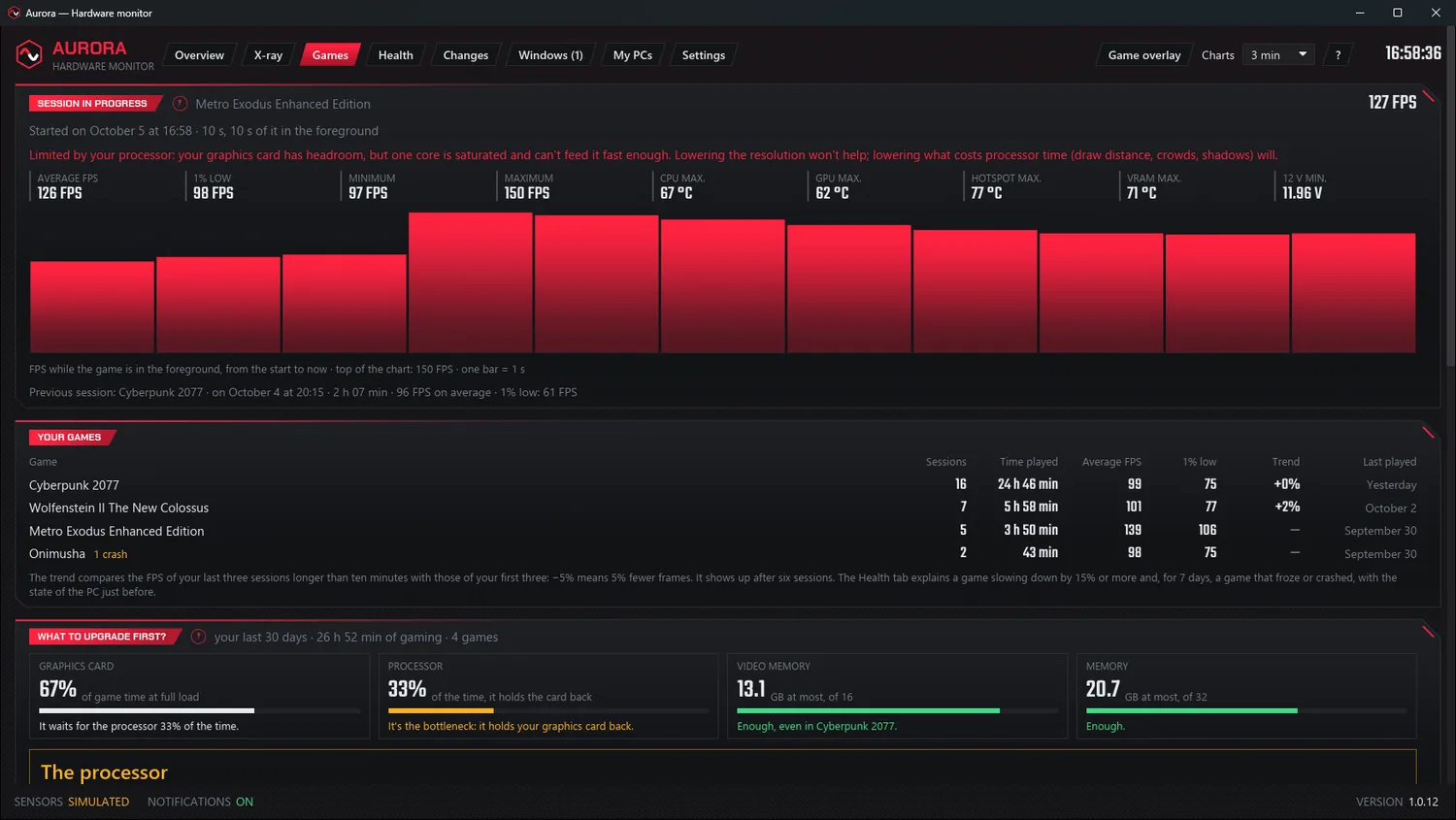
Every session is kept: average FPS, 1 % low, duration. Aurora notices when a game runs slower than it used to.
- A game that freezes or crashes: the state of the PC just before — heat, video memory, graphics driver.
- What limits your FPS, live in the overlay: the graphics card, the processor holding it back, or an FPS cap — and what to upgrade first.
- An overlay on top of your games, in its own small window, without touching the game.
Know what to install, and when
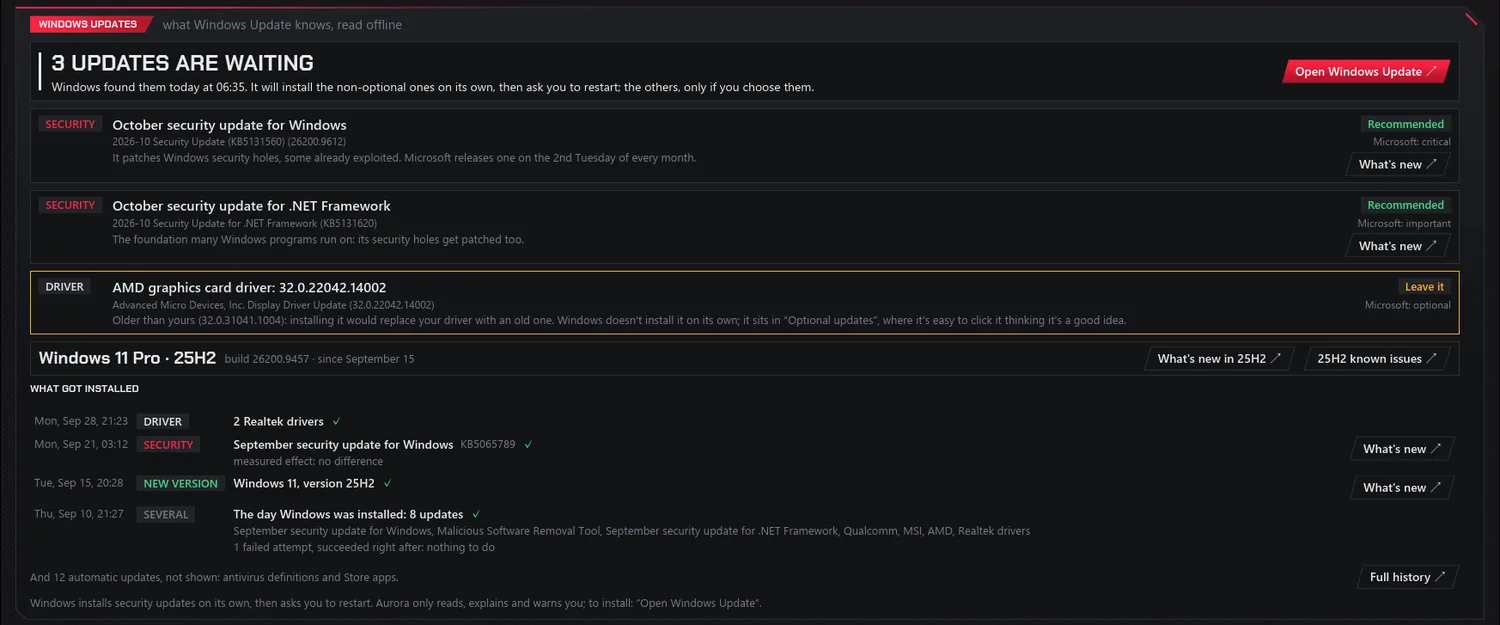
Aurora reads what Windows Update already knows, offline, and tells you plainly. It installs nothing: “Open Windows Update” takes you to the right place.
- Each update in plain words, with Aurora's advice: recommended, optional, at your own pace, leave it.
- Microsoft's page explaining it, in your Windows language, and the known issues of your version.
- The Health tab only warns you when it matters: a security update that keeps failing, a restart that drags on.
“I wanted to know whether there's a Windows update, and above all whether it's recommended.” — Denis
Eight tabs, one program
Click a tab, just like in Aurora.
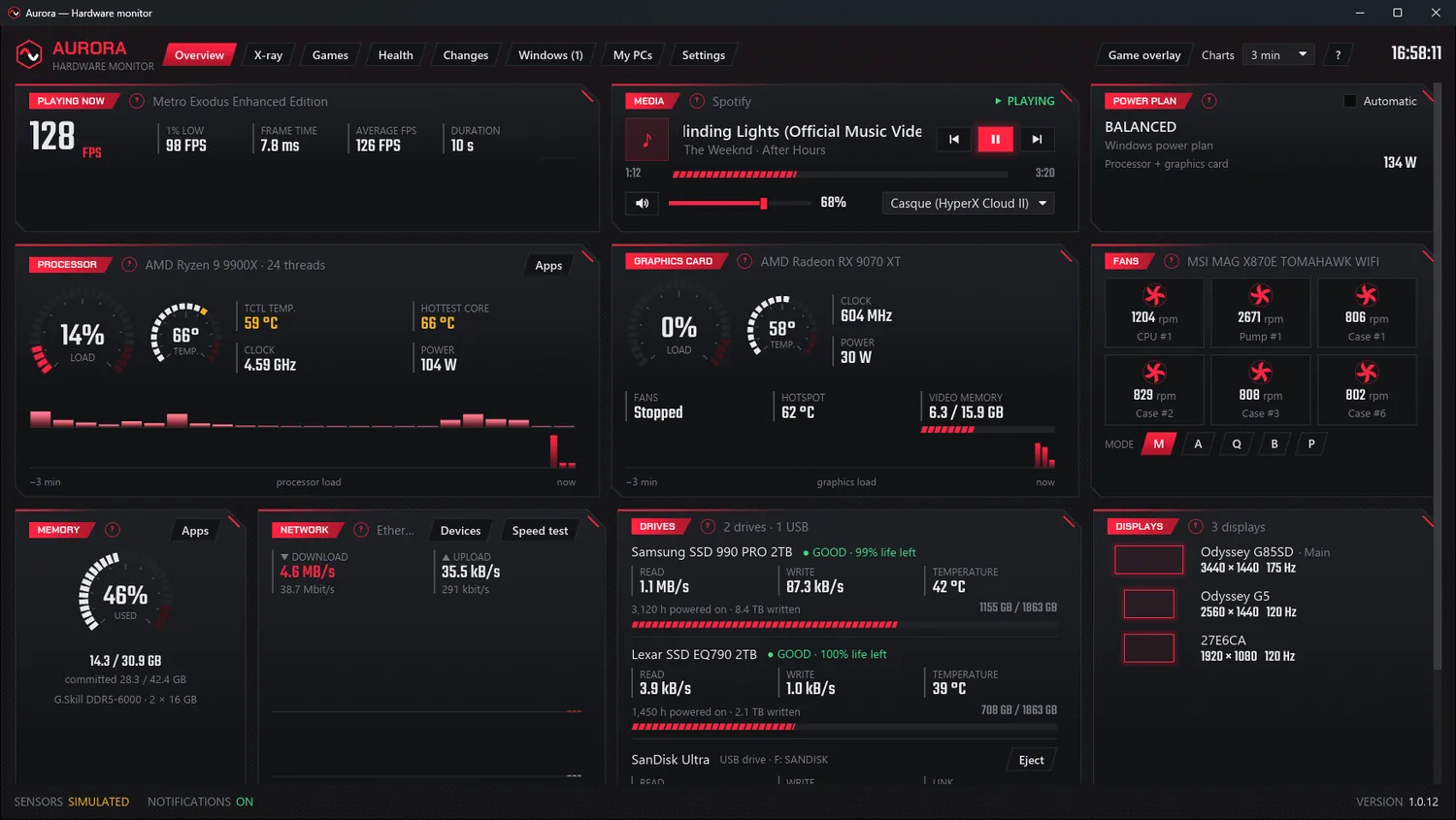
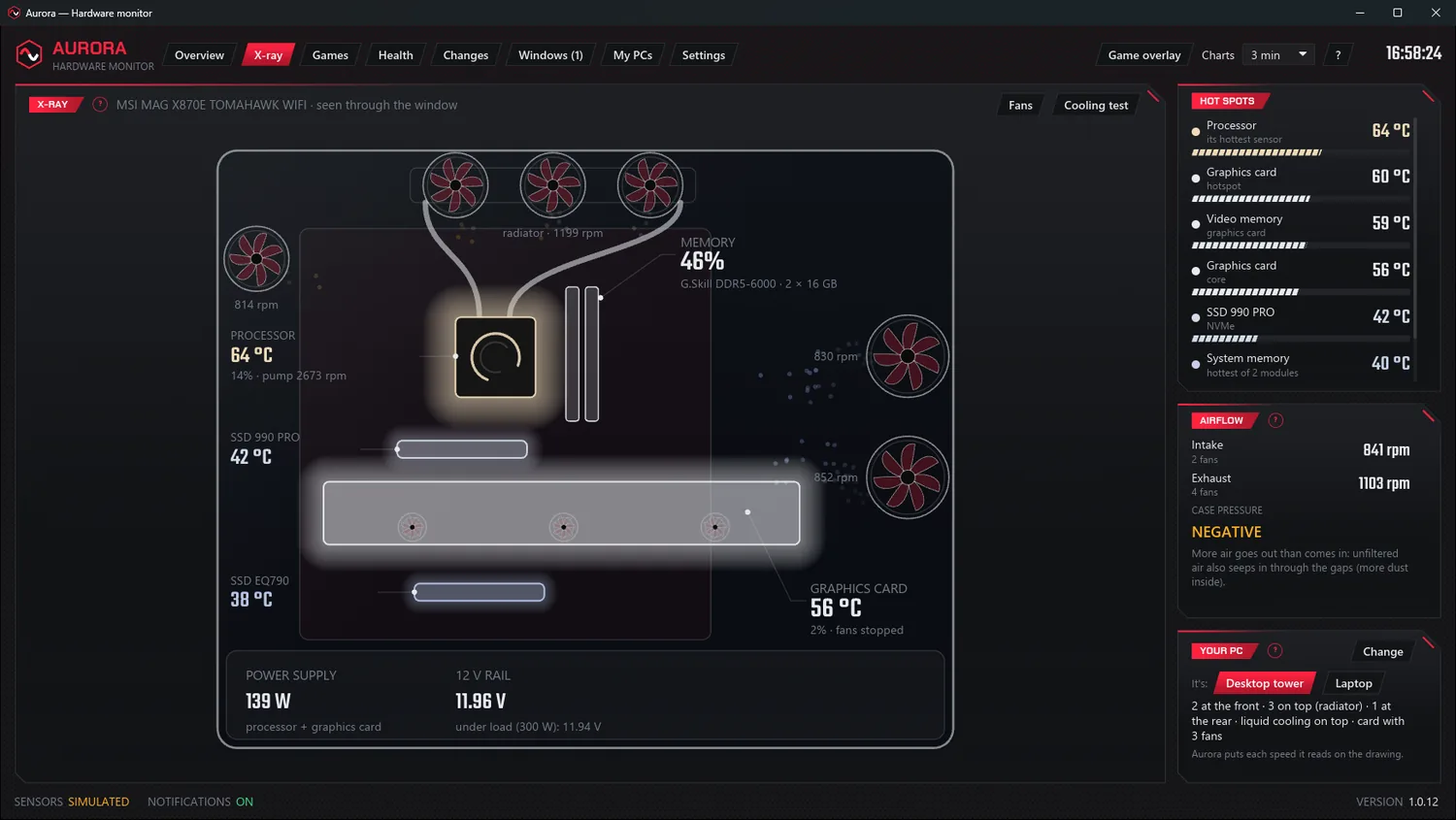
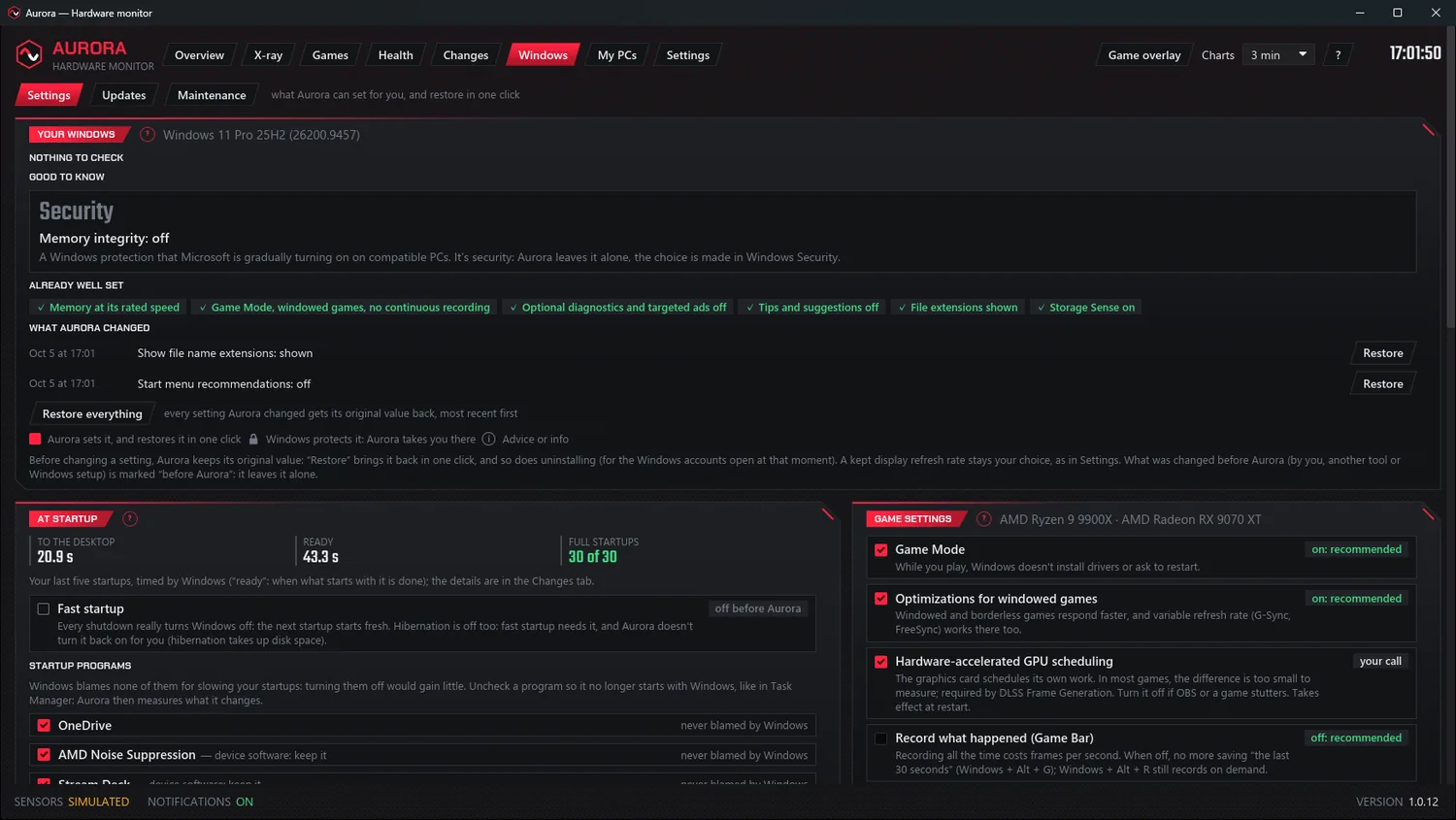
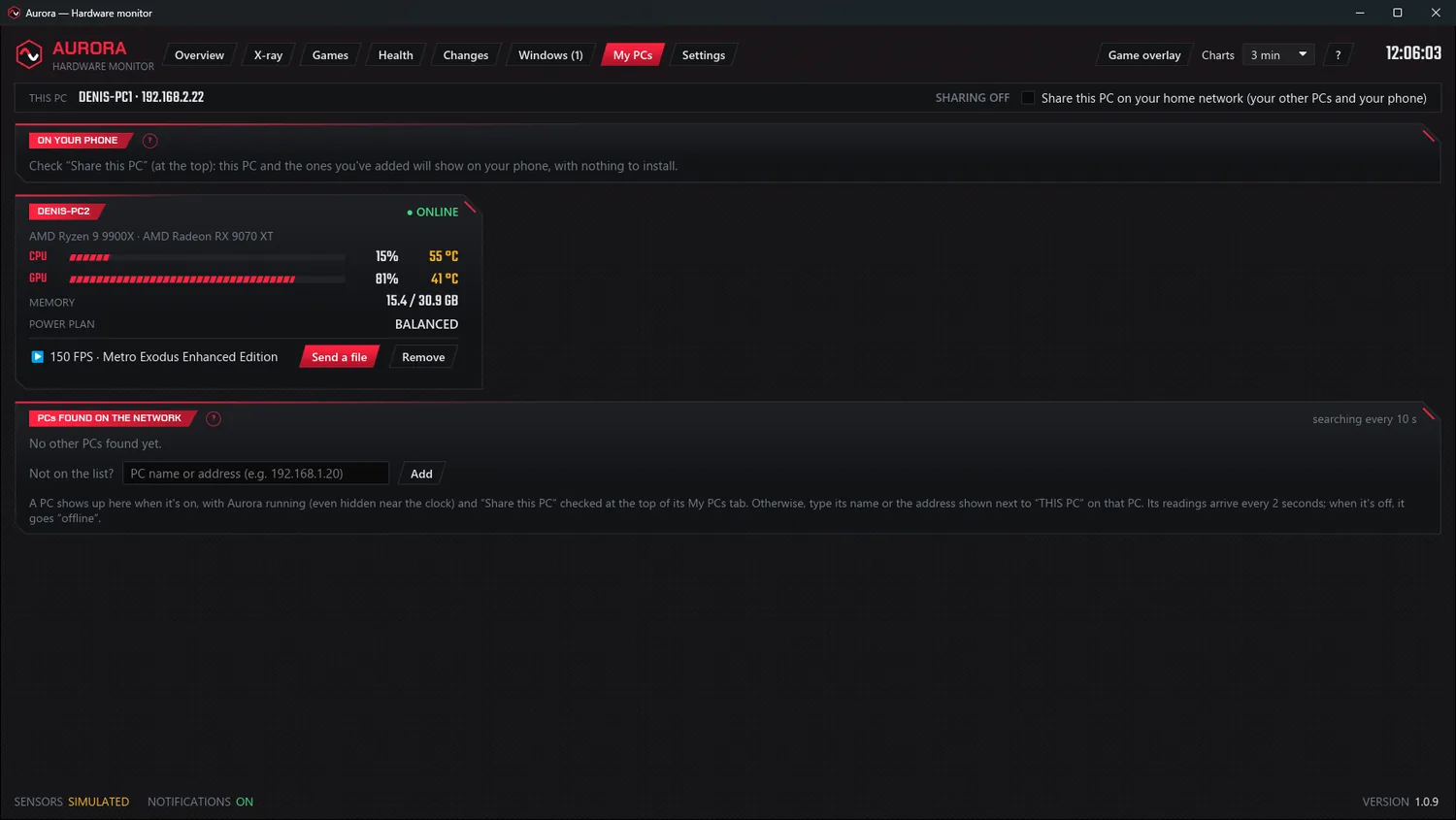
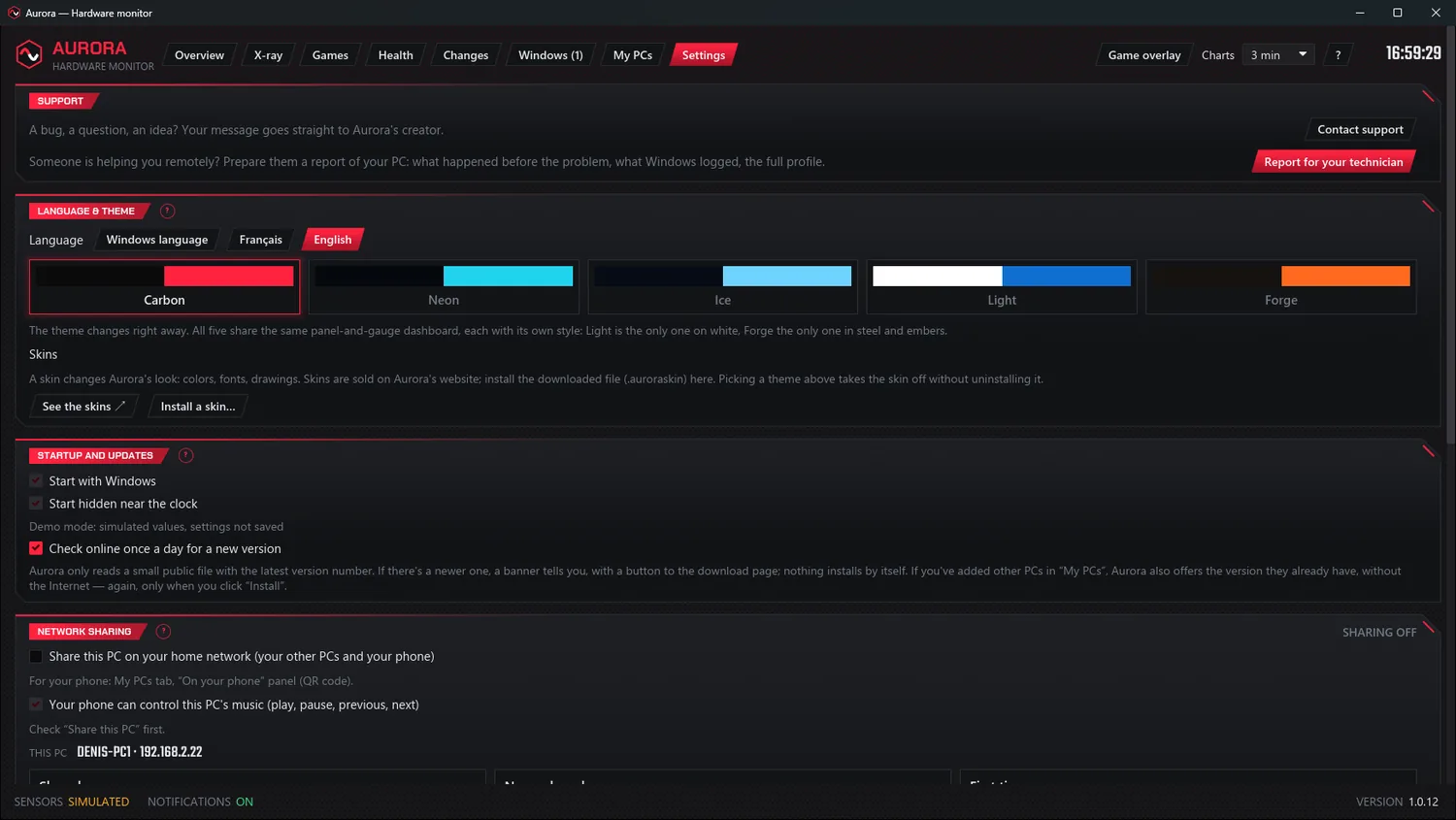
Your whole PC on one screen: processor, graphics card, memory, fans, drives, network, displays, music and the game in progress. Your PC drawn from the real one, tower or laptop: parts light up with their heat, the air flows, the fans spin at their real speed. The session in progress with its FPS and what limits them, all your games with their trend, freezes and crashes, and what to upgrade first. The check-up, in plain words, most serious first: what's wrong, what to do, and what changed just before. What changed on your PC, day after day, the effect of every change, and Windows startup timed. Windows read in full, and tuned only if you check it: each setting goes back in one click, and maintenance uses Microsoft's own tools. The other PCs at home as tiles, a file sent from one to another, and the same view on your phone through a QR code. Language, theme, start with Windows, sharing and alert limits, degree by degree.
Your rig, seen through the window
Tell Aurora once how many fans sit at each spot in your case. It draws your rig, and works out the pressure inside: positive means air comes in through the filters and dust stays out. A laptop is drawn open, seen from above, with its battery.
Fans under control
Quiet, Balanced, Performance, or Automatic: Performance while gaming, Quiet during music. 100 % above 85 °C, handed back to your motherboard the moment Aurora closes.
Cooling test
Three minutes, a score out of 100. Repeated over the months, it becomes a dust detector.
Everything a PC has to say
In-game overlay
FPS, temperatures and load on top of your games, in three layouts, with a shortcut that works mid-game.
Applications
The twenty hungriest, live, and a button to stop one. What keeps Windows running has none.
My PCs and your phone
The Auroras at home find each other and send each other files. A QR code opens the same view on your phone, with nothing to install.
Network devices
What is plugged in at your place, with the maker guessed — without sending anything over your network.
Automatic power
Performance while gaming, savings at rest: the Windows power plan switches by itself, and returns to your usual one when you quit.
Speed test
Latency, download and upload over four connections at once, kept in a log to see whether your connection is getting weaker.
Verified updates
The PCs at home hand each other the new version, and each one checks its signature before installing it.
French and English
The whole app, right down to units and notifications. The language follows Windows, or you pick it.
USB drives and SD cards
Your drive shows up with its free space, speeds and USB link — Aurora tells you if it is stuck at USB 2. One button ejects it safely.
Several accounts
Each account decides whether it starts with Windows. Two sessions open: only one Aurora controls the fans, the one of the person in front of the screen.
Write to me
A bug, a question, an idea: the Support section in Settings sends me your message, with your hardware sheet if you want.
Media
Whatever is playing, from Spotify to YouTube: play, pause, volume and audio output. And a remote on your phone.
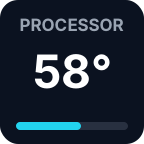
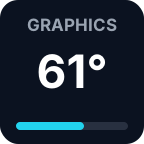
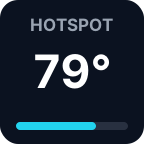
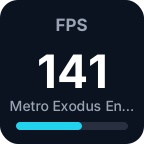
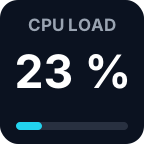
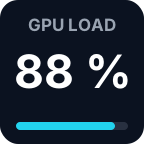
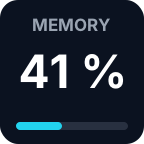
The keys exactly as the plugin draws them, with Aurora's demo readings.
Your readings at your fingertips
Got an Elgato Stream Deck? The Aurora plugin puts its readings on your keys: temperatures, hotspot, loads, memory, and the FPS of the game you are playing, with its name. Refreshed every two seconds, in Aurora's alert colours; press a key and Aurora opens.
What you need
Aurora 1.0.4 or later, running, and the Stream Deck software 6.5 or later: nothing to check. The plugin reads Aurora on your PC, no Internet or network needed.
Install
Double-click the file: the Stream Deck software adds it, or updates the old one. Then drag the keys you want from the “Aurora” category.
The same dashboard, five skins
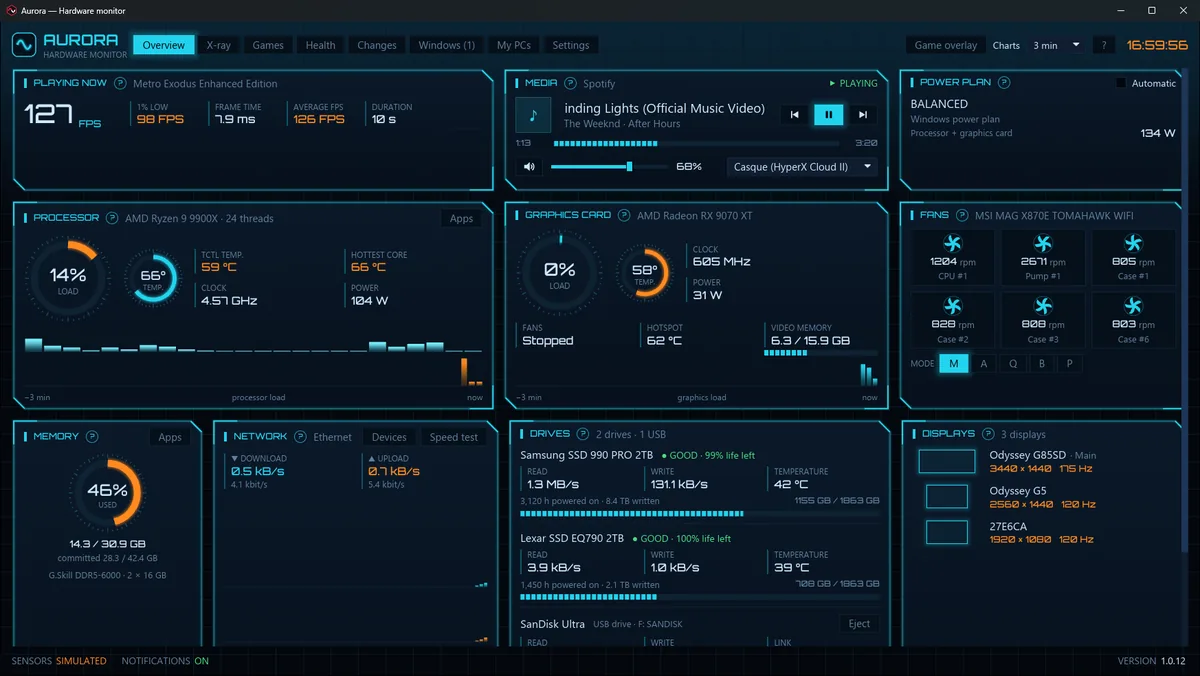
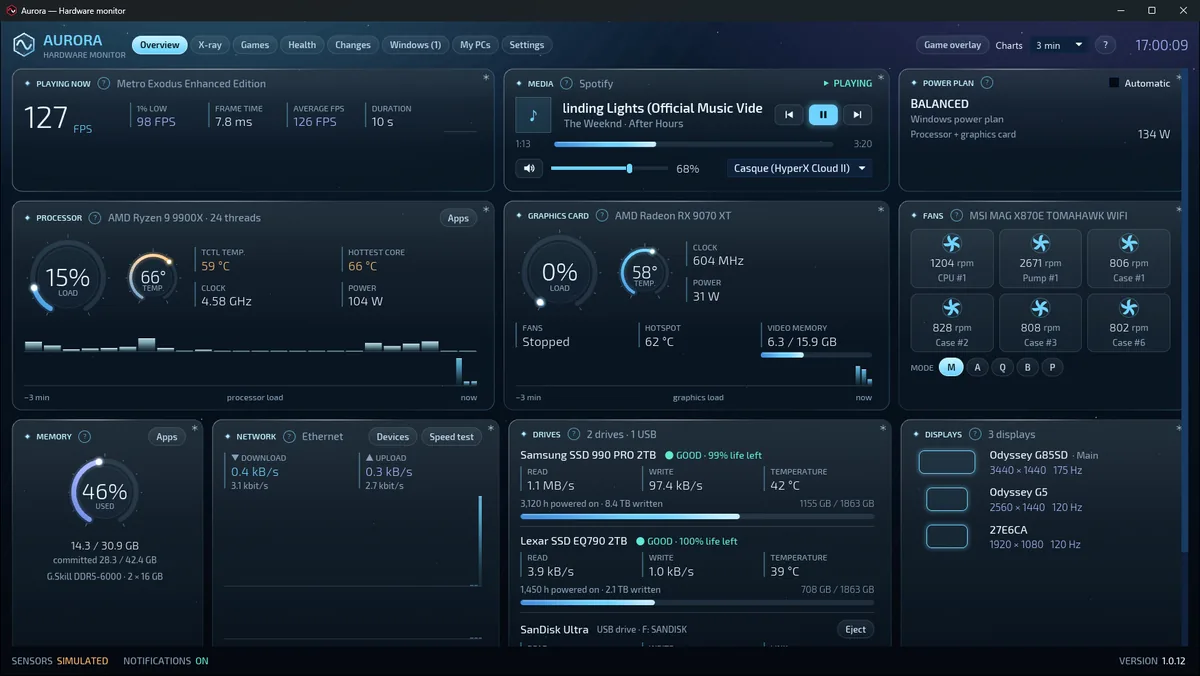
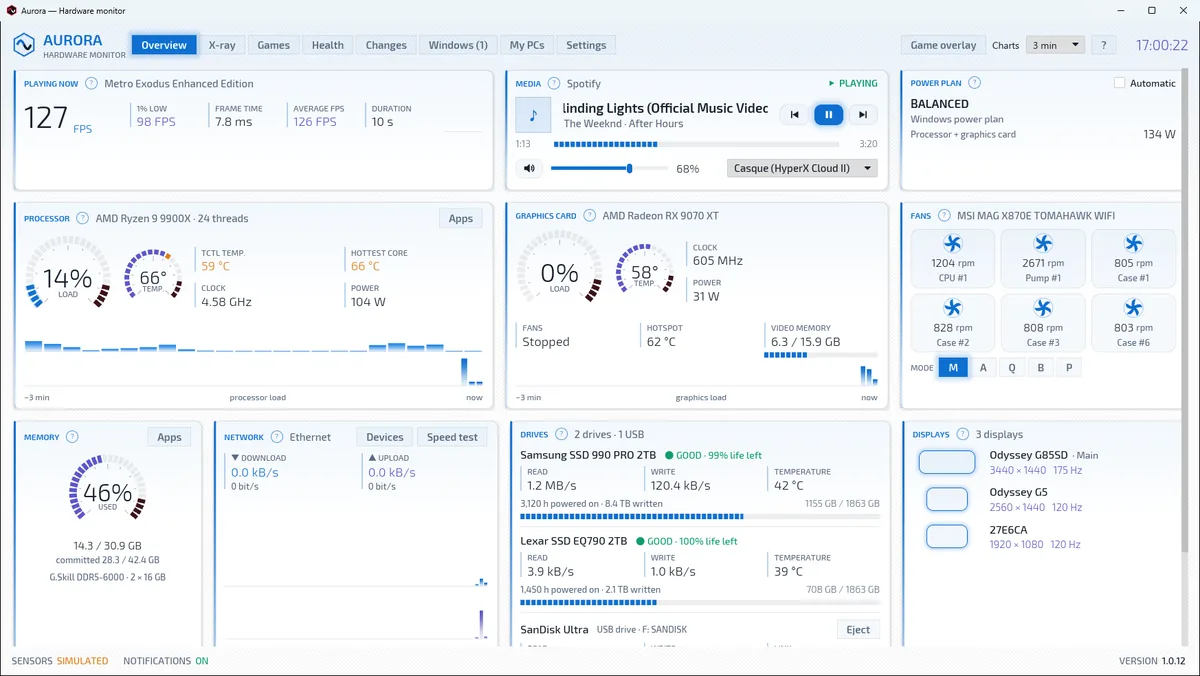
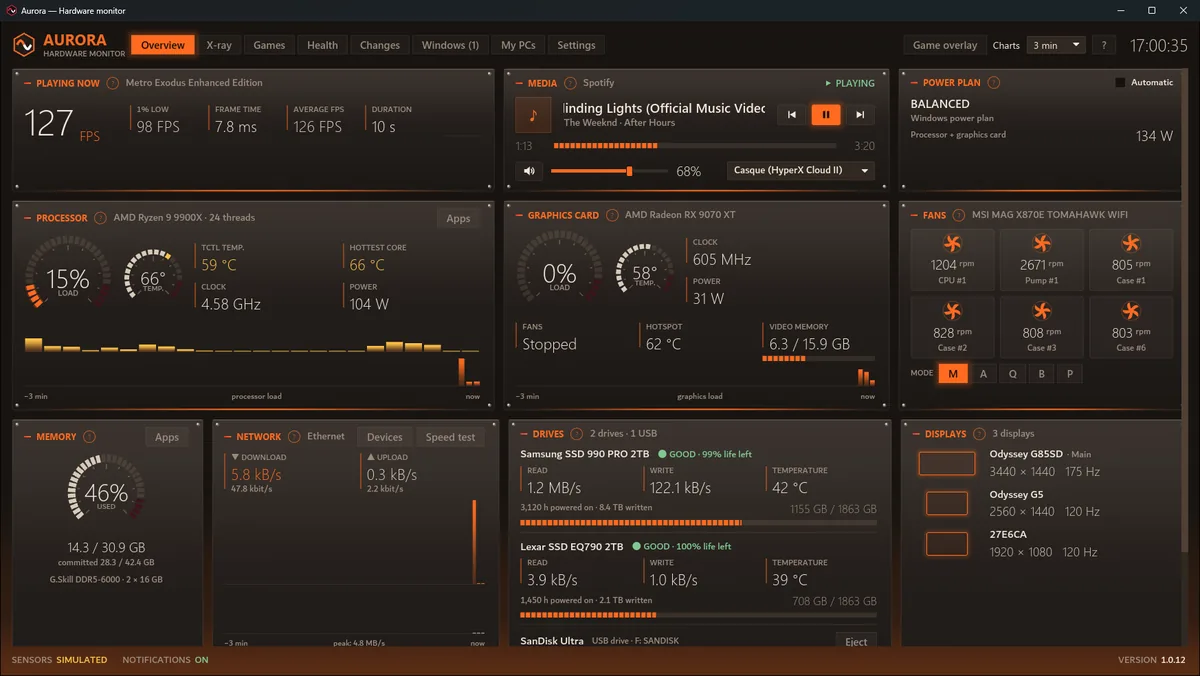
Carbon, the original: carbon fibre and vivid red. Neon: blue-and-orange science fiction. Ice: polar night and frosted glass. Light: the only one on white, for a sunlit room. Forge: brushed steel, rivets and embers under the panels.
A word from Denis
I built my own PCs for years, and I always wanted to know what goes on inside — not with columns of numbers, but in plain words. Aurora is the tool I wanted for myself.
It has surprised me more than once: a Samsung monitor connected to my network for months without my knowing, and my graphics card drawing 50 W while doing nothing. When Wolfenstein froze twice in one evening, I wanted to know why: that became the Games tab.
Aurora is free, and it will stay that way. I want it to be for everyone, not just people who know their PC inside out. If it teaches you something about your PC, write to me: I always enjoy hearing it.
What Aurora does not do
Privacy
No account, no ads, no readings sent, nobody tracked. It asks the Internet three things, and only three: once a day, the latest version number; the speed test, when you click it; and your message, when you write to support from Settings — with your hardware sheet only if you tick the box (models, versions, sensors; never your name, address, games or software). The first can be turned off in Settings; the other two never go out on their own.
Signed, written in Rust
Aurora and its installer are digitally signed in the name of Denis Desbiens: Windows knows where the file comes from, and would warn you if anyone altered it along the way. And Aurora is written in Rust, a modern language built for safety: it prevents memory errors, the cause of most security holes. That matters for a program that runs as administrator.
What you need
Windows 10 (1809 or newer) or 11, 64-bit. Administrator rights, asked for at startup: that is the only way to read temperature sensors. The installer adds .NET 10 and the PawnIO driver if needed.
Step by step, no surprises
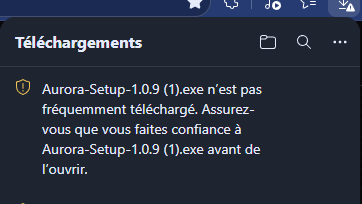
A new version has no reputation with Microsoft yet: for the first few days, Edge may be wary of it, even though it's signed. Here's what to do, with the real windows.
-
Download the file
If Edge says it “isn't commonly downloaded”, that just means it's still new.
-
Keep it
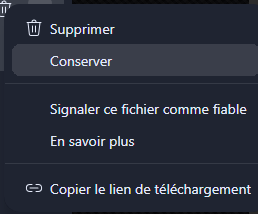
Hover over the file, click the three dots “…”, then “Keep”.
-
Check the publisher
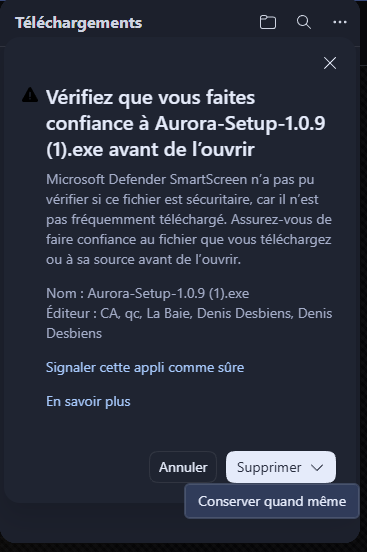
Edge asks you to confirm. The publisher should be Denis Desbiens: click the arrow next to “Delete”, then “Keep anyway”.
-
Open it
Windows asks for administrator rights. The window shows “Verified publisher: Denis Desbiens”: click “Yes”.
-
Let it work
The installation adds .NET 10 and PawnIO if they are missing: that can take a few minutes, bar frozen. This is normal. Aurora opens when you click “Finish”.
Screenshots of Edge in French. Another browser may show a similar warning: choose to keep the file.
If Windows warns you when you open it
“Windows protected your PC”: it's the same reputation still building up. Click “More info”: if the publisher is Denis Desbiens, “Run anyway” installs Aurora.
To check the file yourself: right-click → Properties → “Digital Signatures”. Or compare its fingerprint, in PowerShell: Get-FileHash .\Aurora-Setup-1.0.12.exe -Algorithm SHA256
8D5C78E0334CB2591EC79CBEC653CD056E3F06BEB9C9CAFD4FEB3268F4C62A70
Aurora is free, and will stay free
No paid version, no ads, nothing to unlock. If it is useful to you and you would like to help what comes next, there is a tip jar. A donation buys nothing extra: it is a thank you, not a purchase.
Buy a coffeePrevious versions
What each version added to Aurora, from the newest to the oldest.
Free up space, safely
Aurora finds your duplicate files and shows you what's really filling your drive. Everything goes through the Recycle Bin, and you decide.
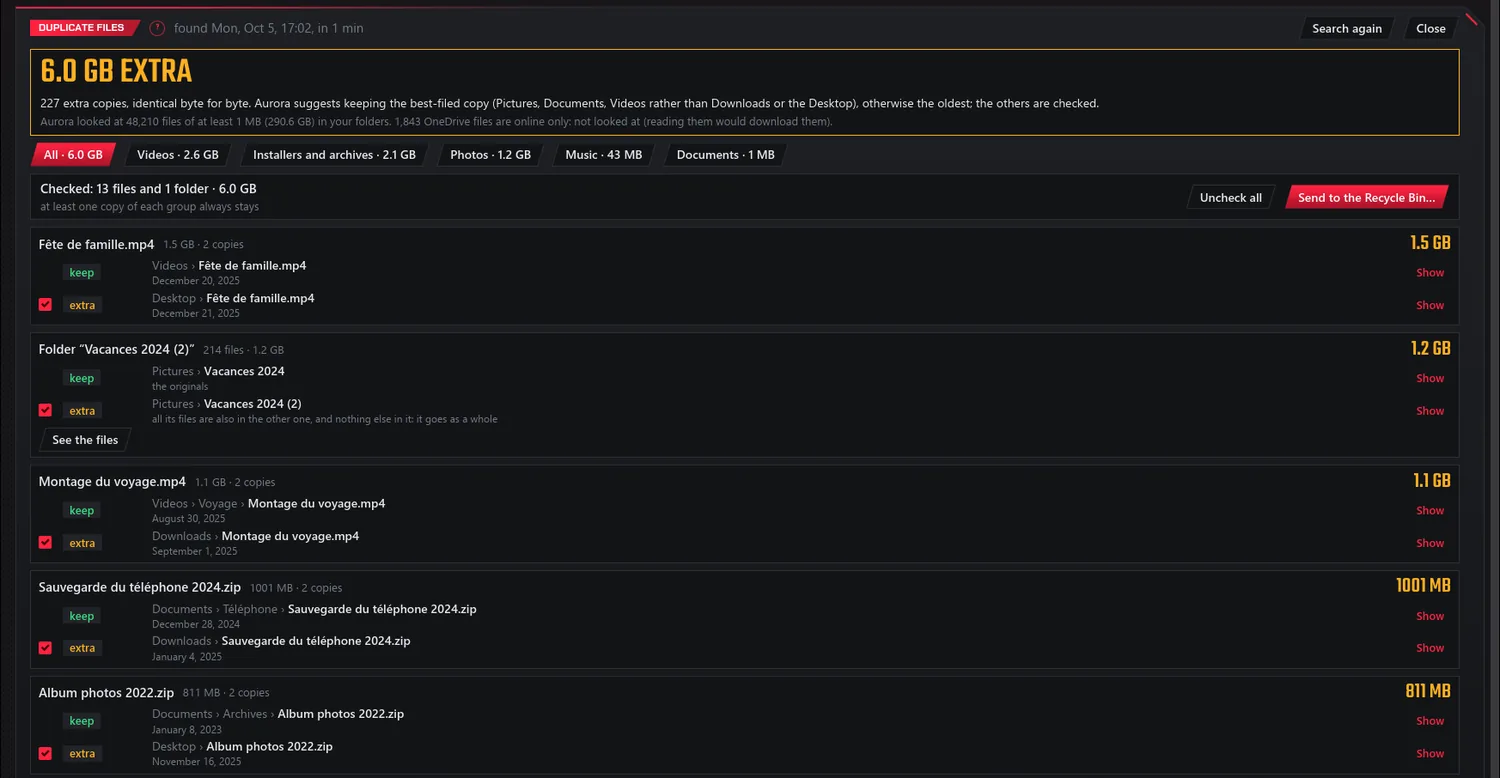
Exact copies, and nothing else
In the Windows tab, under Maintenance: Aurora compares your files byte for byte and suggests the copy to keep. You do the checking.
- Your folders only: Documents, Pictures, Videos, Music, Downloads, Desktop, OneDrive. Never Windows, programs or games.
- Always the Recycle Bin, never deleted for good: each copy is checked again just before, and at least one copy of each file stays.
- The space gained, measured when you empty the Recycle Bin. Your file names never leave your PC.
“I asked myself how to remove duplicate files safely, and I wanted it to work well for everyone.” — Denis
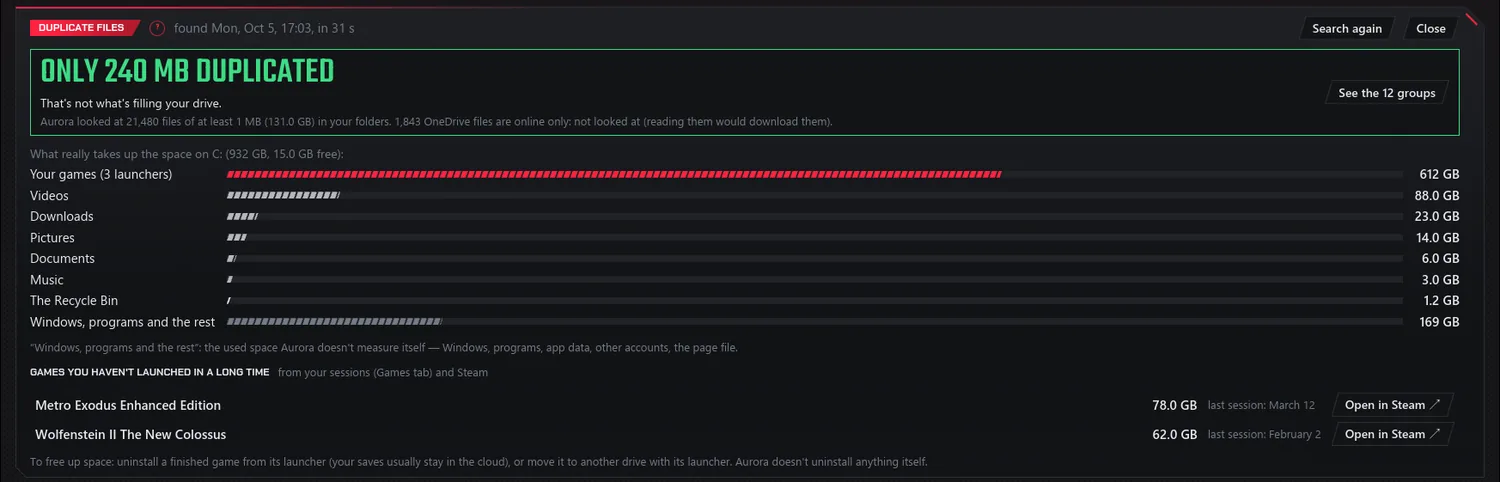
Few duplicates? Aurora says so
For a gamer, it's often something else filling the drive. Aurora shows you what it is, drive by drive.
- Your games (from Steam, Epic, GOG, Xbox, EA and Ubisoft), your folders, the Recycle Bin, Windows and the rest.
- The games you haven't launched in three months, with the date of their last session.
- For a Steam game, a button opens its page, where you uninstall or move it. Aurora itself doesn't uninstall anything.
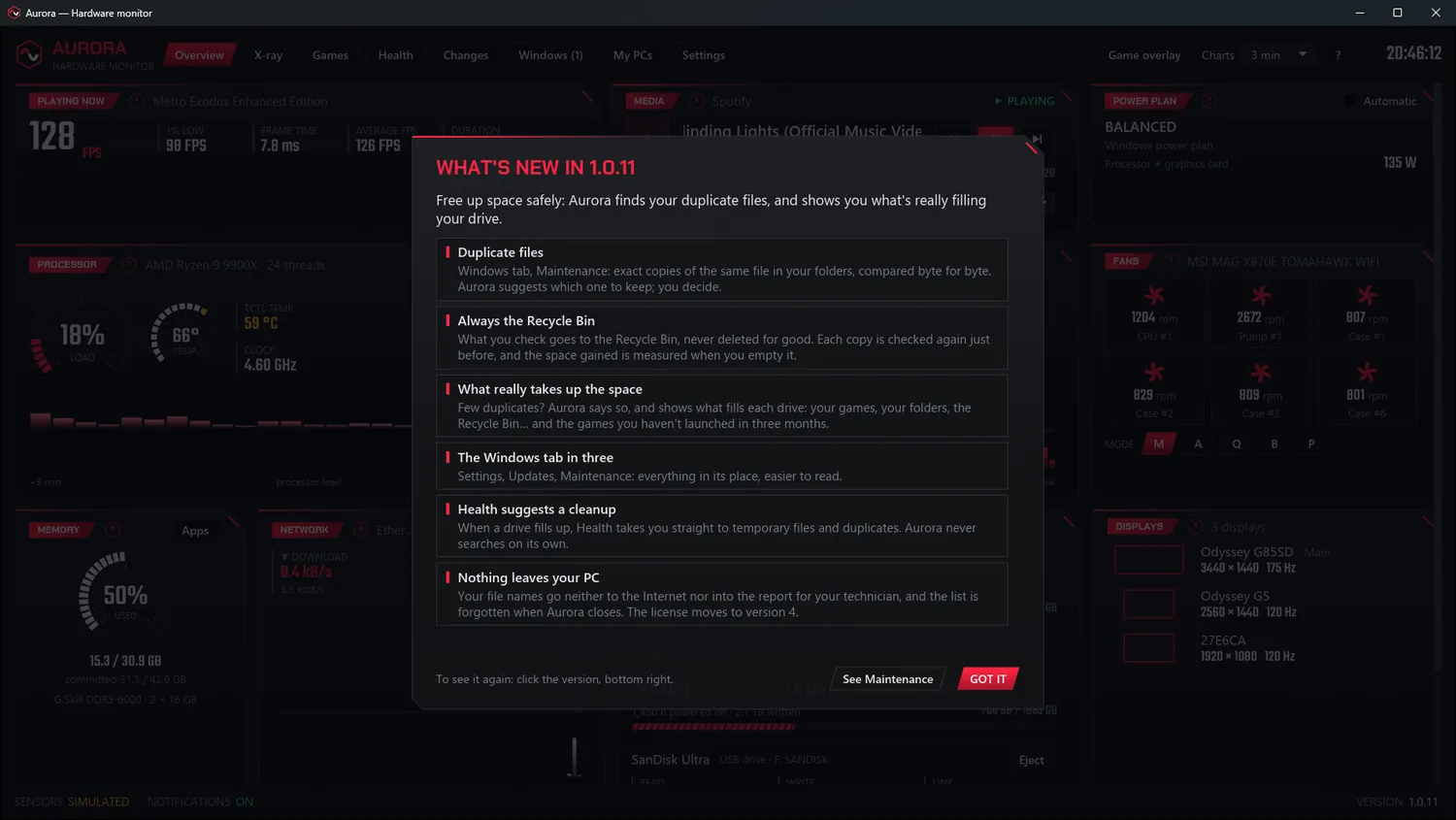
A clearer Windows tab
The Windows tab now has three sub-tabs: Settings, Updates and Maintenance. Everything in its place.
- When a drive fills up, the Health tab takes you straight to temporary files and duplicates. Aurora never searches on its own.
- The license moves to version 4: it says that maintenance sends the duplicates you check to the Recycle Bin.
- “Copy as text” and the list of updates display properly with every skin.
Made to help you
Aurora explains Windows updates in plain words, and prepares a full report for whoever helps you remotely. For everyone, not just people who know their PC inside out.
Know what to install, and when
Aurora reads what Windows Update already knows, offline, and tells you plainly. It installs nothing: “Open Windows Update” takes you to the right place.
- Each update in plain words, with Aurora's advice: recommended, optional, at your own pace, leave it.
- Microsoft's page explaining it, in your Windows language, and the known issues of your version.
- The Health tab only warns you when it matters: a security update that keeps failing, a restart that drags on.
“I wanted to know whether there's a Windows update, and above all whether it's recommended.” — Denis
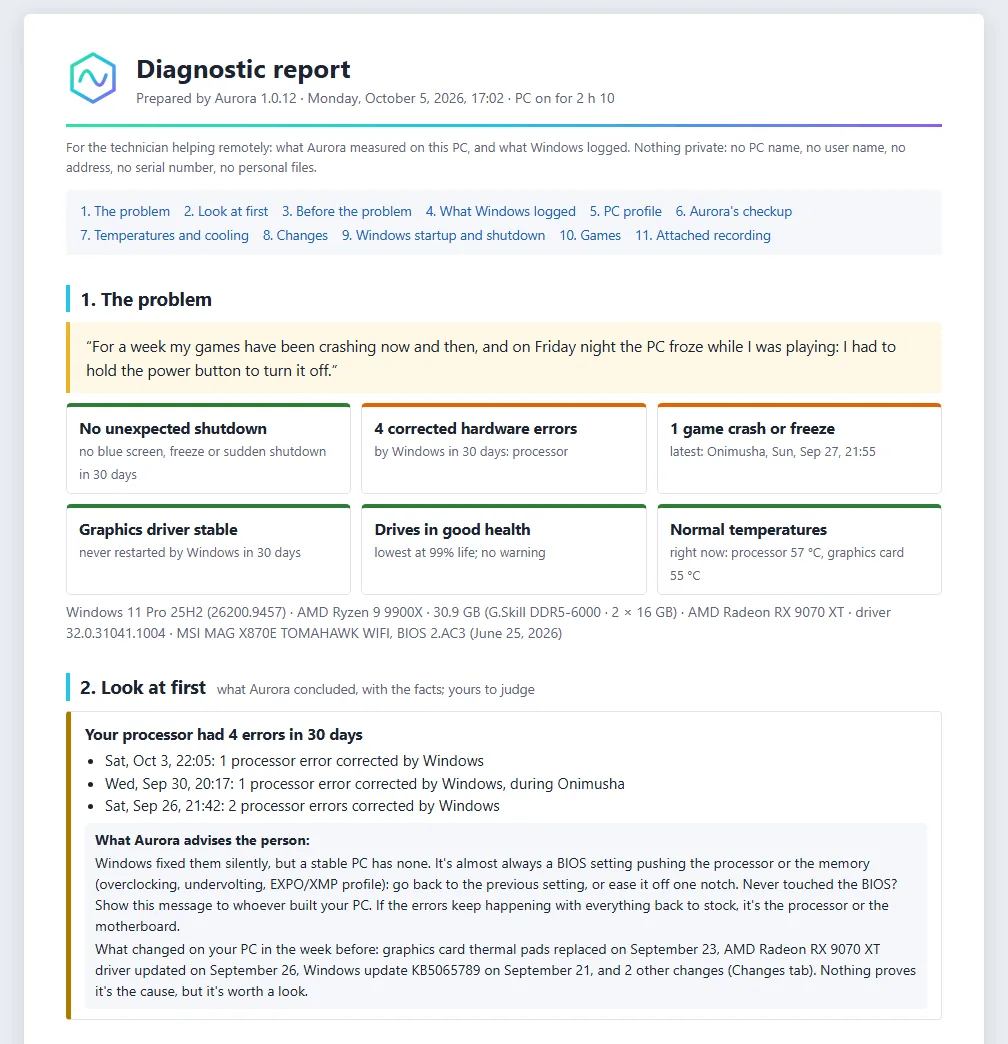
Someone helping you remotely?
In the Health tab, a button you can't miss: Aurora prepares everything a technician needs to pin down the problem.
- The PC's full profile, what happened before the problem, what Windows logged without telling you.
- As a web page (it opens without the Internet and prints to PDF) or as text, for an email, a messaging app… or an AI.
- Nothing private, and nothing goes out by itself: you're the one who sends it.
“I asked myself how Aurora could help a technician who troubleshoots someone's PC remotely.” — Denis
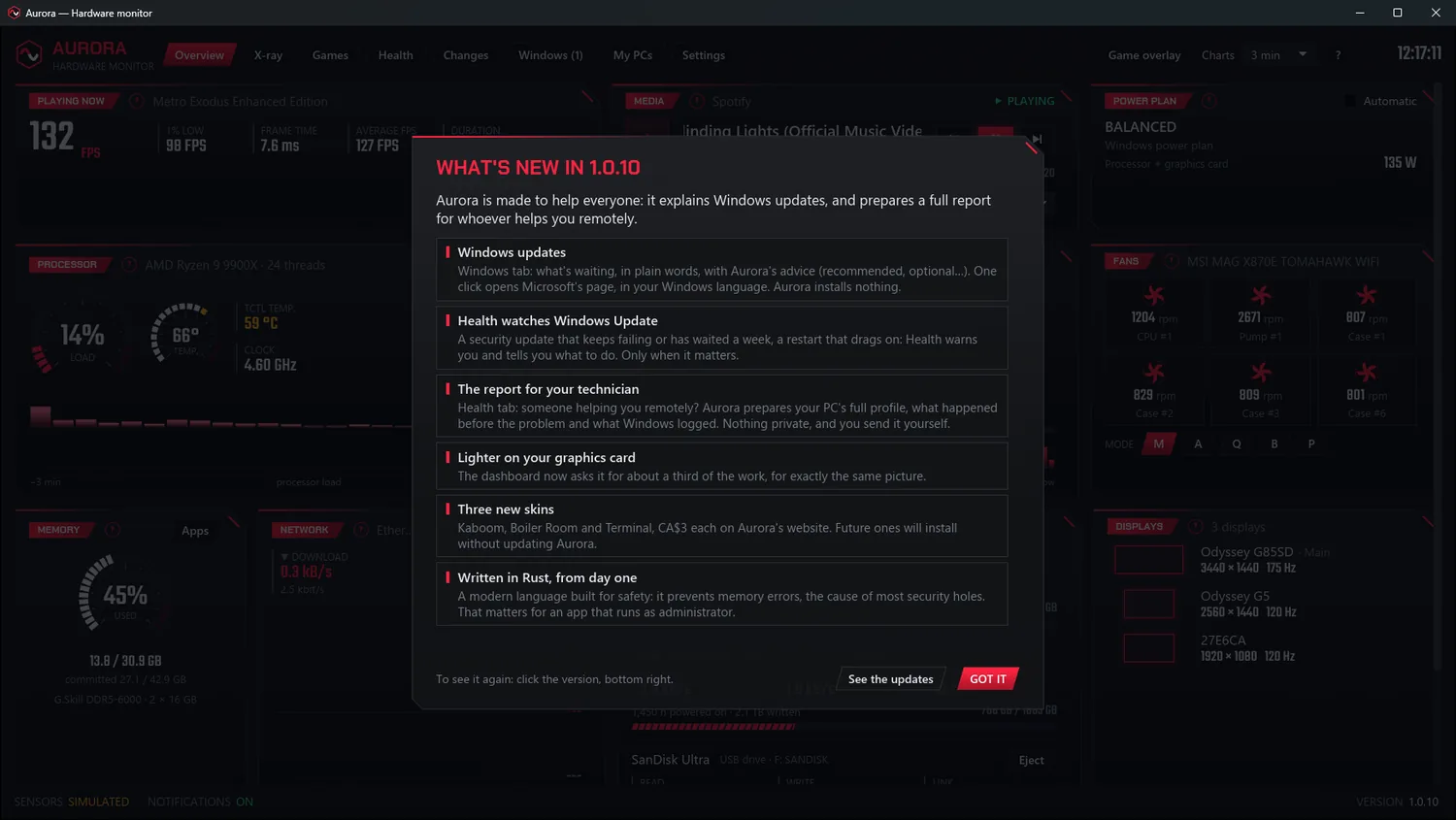
Lighter, and written in Rust
The dashboard asks your graphics card for about a third of the work, for exactly the same picture.
- Written in Rust from day one: a modern language built for safety, which prevents memory errors, the cause of most security holes.
- Three new skins: Kaboom, Boiler Room and Terminal. Future ones will install without updating Aurora.
- A name that's too long ends with “…” instead of being cut off.
Dress it your way
Six skins in the mood of as many kinds of games, and a dashboard that moves smoothly, without taking anything from your games.
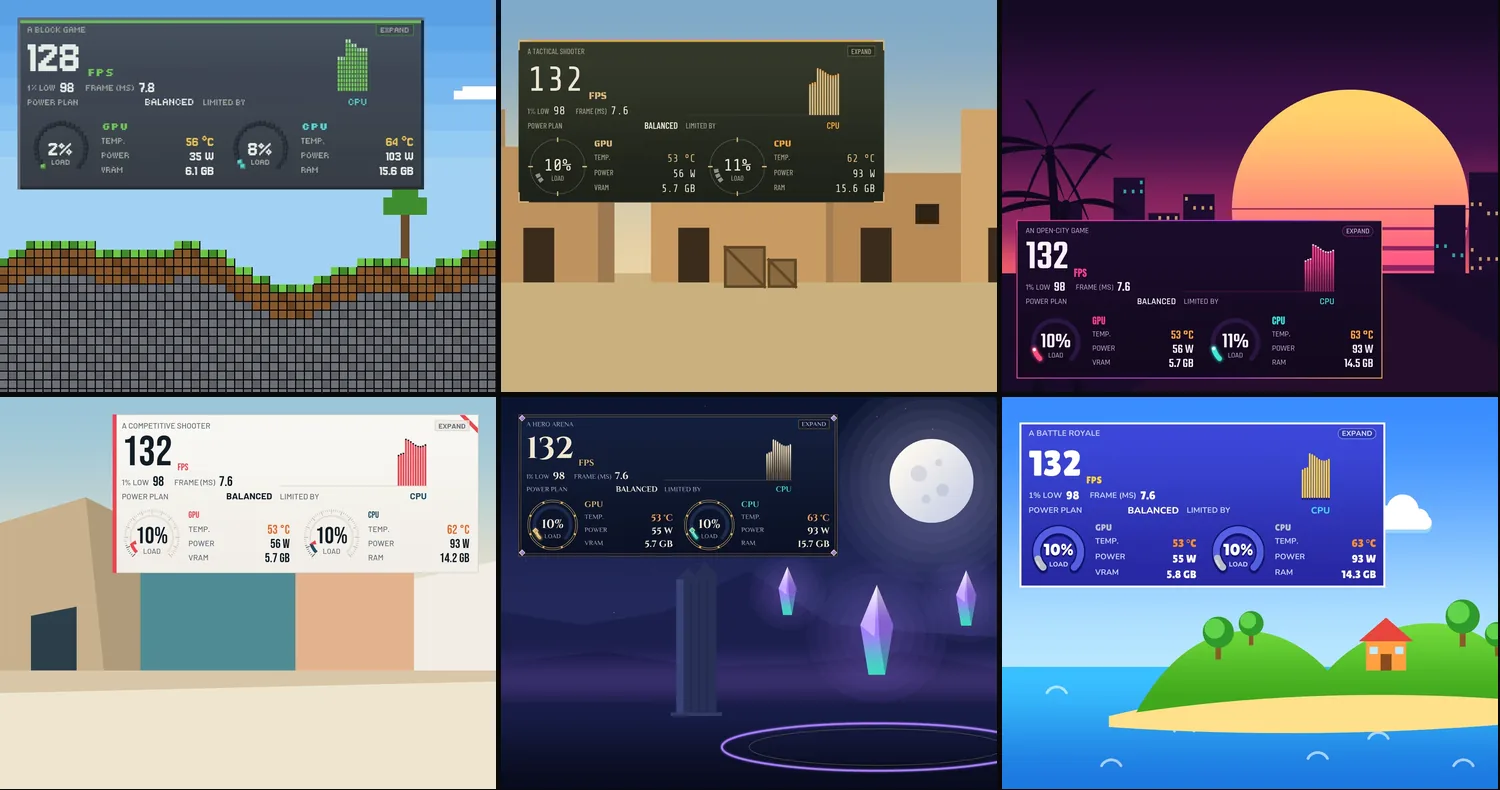
Six moods, CA$3 each
A skin changes Aurora's whole look, all the way to the game overlay. You install it in two clicks in Settings, and go back to the free themes whenever you like.
- Pixel, Squad, Boulevard, Precision, Spellbound and Storm: names, fonts and drawings of our own.
- Bought once, on all your PCs. Never a program: a file signed by Aurora, with no connection.
- The five themes stay free.
“Aurora is free, and it will stay that way. Skins are how I keep it going.” — Denis
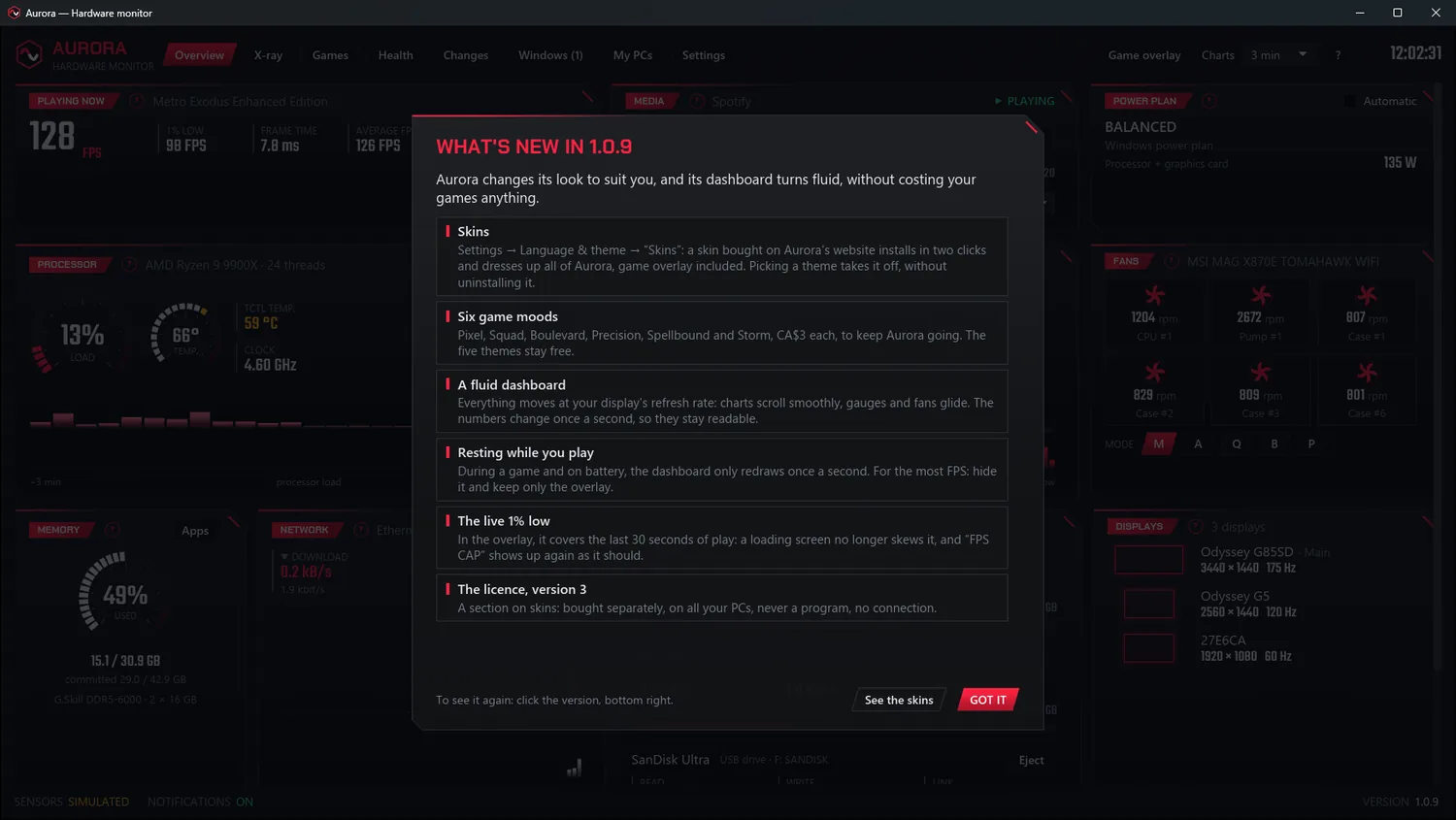
Fluid, and resting while you play
Everything moves at your display's refresh rate; the numbers change once a second, so they stay readable.
- Charts scroll smoothly, gauges and fans glide.
- During a game and on battery, it only redraws once a second. Measured: no frame lost in game.
- The live 1% low covers the last 30 seconds: a loading screen no longer skews it.
“I wanted a dashboard that moves without a single jolt, but not at the cost of a single frame per second in my games.” — Denis
Reviewed top to bottom
A bug-fix release: the Windows tab, reviewed line by line, is accurate on more PCs and even more careful.
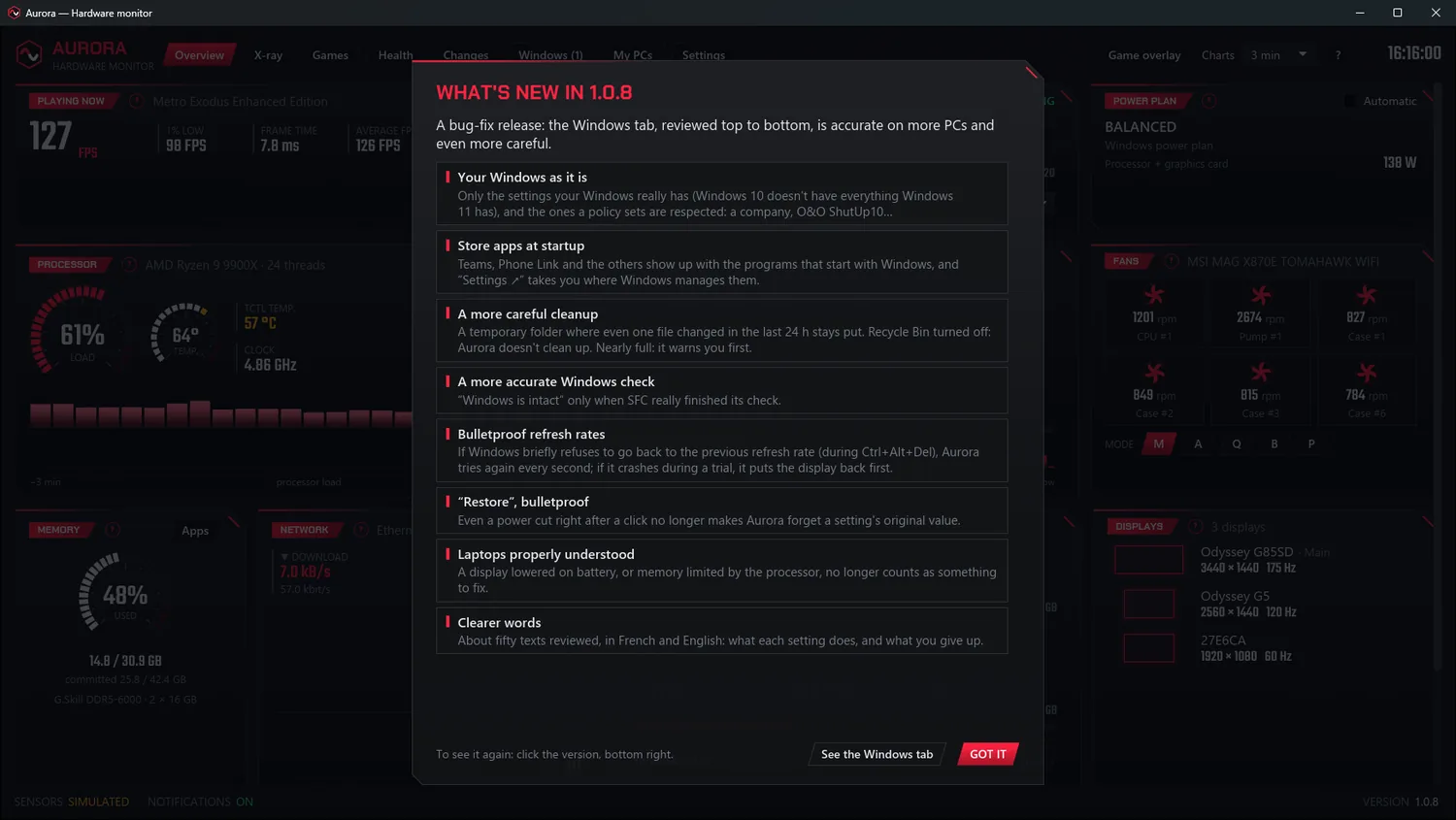
Accurate on more PCs, and even more careful
The code, the security, every word: the whole Windows tab went through a fine-tooth comb. And after an update, Aurora shows you what's new, once.
- Only the settings your Windows really has (Windows 10 included), and the ones a policy enforces are respected.
- Store apps at startup, with “Settings ↗” to manage them.
- A more careful cleanup: nothing is done if the Recycle Bin is turned off, since Windows would delete for good.
- “Windows is intact” only when SFC really finished. Refresh rates and “Restore” hold up even after a crash or a power cut.
“Aurora is heading to PCs I don't know. A tab that touches Windows has to be rock-solid.” — Denis
Measured, not promised
What limits your FPS, live. The effect of every change on your PC. And a tab to tune Windows, where everything can be put back.
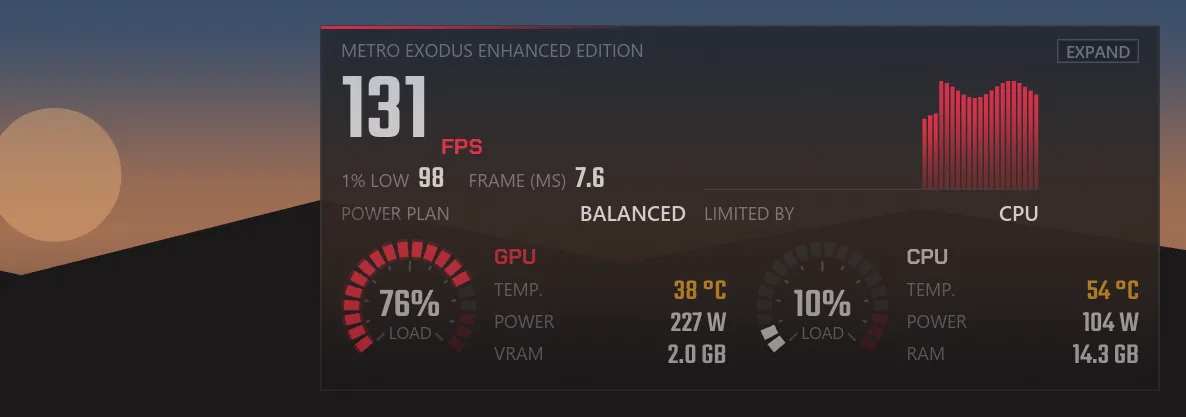
What limits your FPS
During a game, the overlay tells you in one word what's holding your frame rate back. Not a guess from a parts list: a measurement, on your PC, while you play.
- “GPU”: your graphics card is maxed out. That's the normal situation.
- “CPU”: one processor core is saturated and holding it back — even when the processor shows under 10% overall.
- “FPS CAP”: VSync or a frame limiter. Nothing to fix, and the processor isn't wrongly blamed.
- Over 30 days, “What to upgrade first?” (Games tab): the card, the processor, the memory… or nothing at all.
“My Radeon RX 9070 XT sets the pace 99.8% of the gaming time, and my Ryzen 9 9900X almost never holds it back. Aurora's verdict: no rush.” — Denis
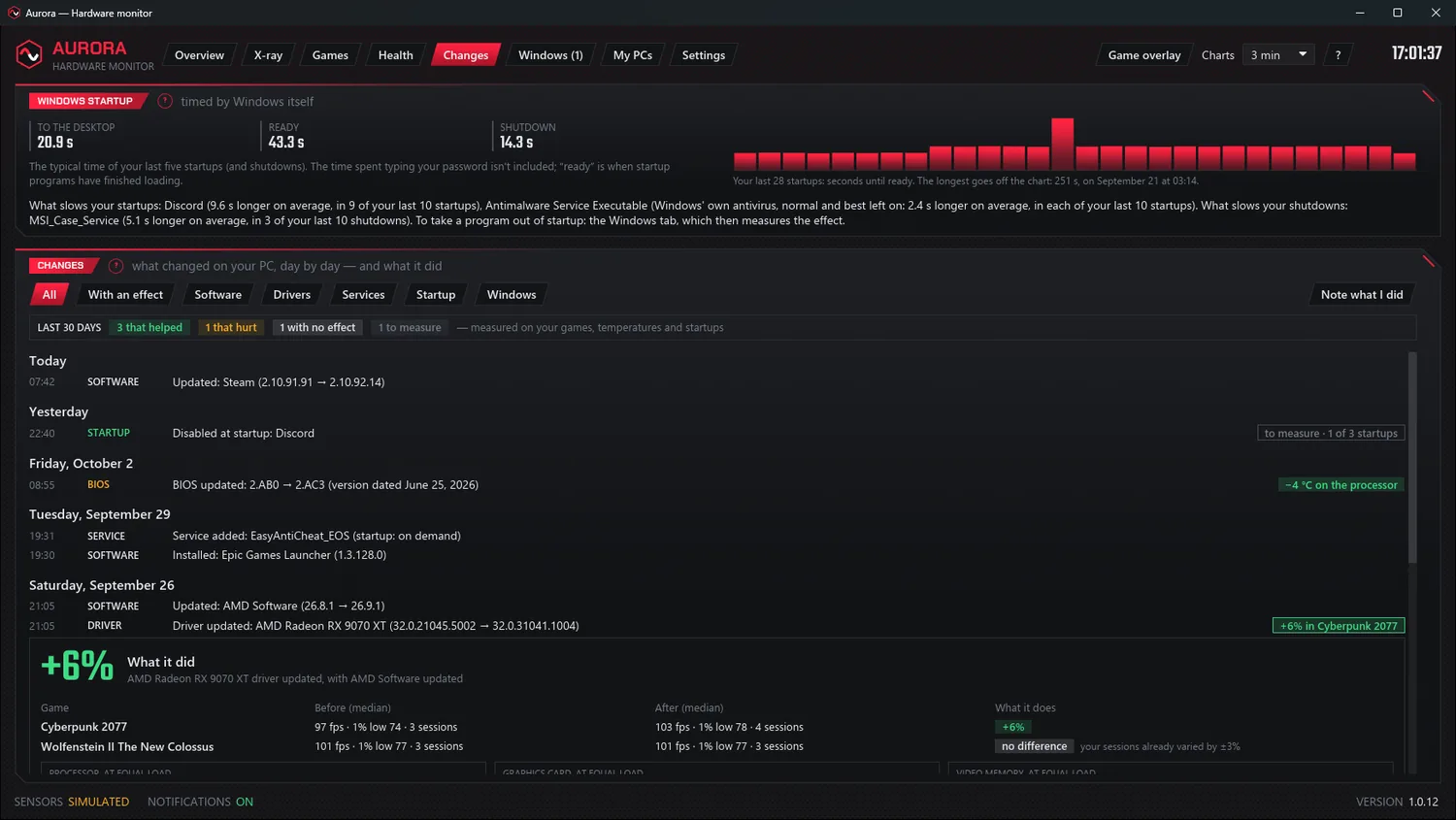
The effect of every change
A new graphics driver, a BIOS, a Windows update, a startup program: Aurora measures on its own what it did, before and after.
- Your games (frames per second), your temperatures at equal load, your startup.
- Never a verdict without something to compare: three sessions, three startups, an hour of load on each side.
- What you do yourself can be noted too: dust, thermal paste, graphics card pads.
- A notification when the verdict comes in.
“Aurora measured what Spotify, launched at startup, adds to my startup: 1.8 seconds.” — Denis
Tune Windows, and put it all back
The Windows tab reads everything — startup, gaming settings, displays, memory, privacy, small annoyances — and only changes what you check, through Windows' official means.
- Never the protections: Defender, firewall, User Account Control, updates.
- The original value written down before any change: “Restore” in one click, “Restore everything”, and uninstalling puts it all back.
- Measured rather than promised: the time saved at startup, and a display's refresh rate tried for 15 seconds before it's kept.
- Maintenance: check and repair Windows (DISM, SFC), check your drives, old temporary files to the Recycle Bin.
Ryzen X3D chips
On a 7900X3D, 7950X3D, 9900X3D or 9950X3D, automatic power management keeps the mode AMD asks for while you play, the Windows tab checks the rest (Game Mode, Game Bar, driver), and shows which CCD the game runs on.
The real restart
Windows fast startup doesn't really restart: Aurora shows it in grey in the Changes tab, and tells you how long Windows hasn't really restarted.
An overlay that fits
Each theme has its own measurements, taken with the longest values: in the Forge theme, the bar's “Expand” button is no longer cut off.
Your PC, tower or laptop
The X-ray now recognizes laptops, your fans carry the names you give them, and the Health tab gives the real reason when a reading is missing.
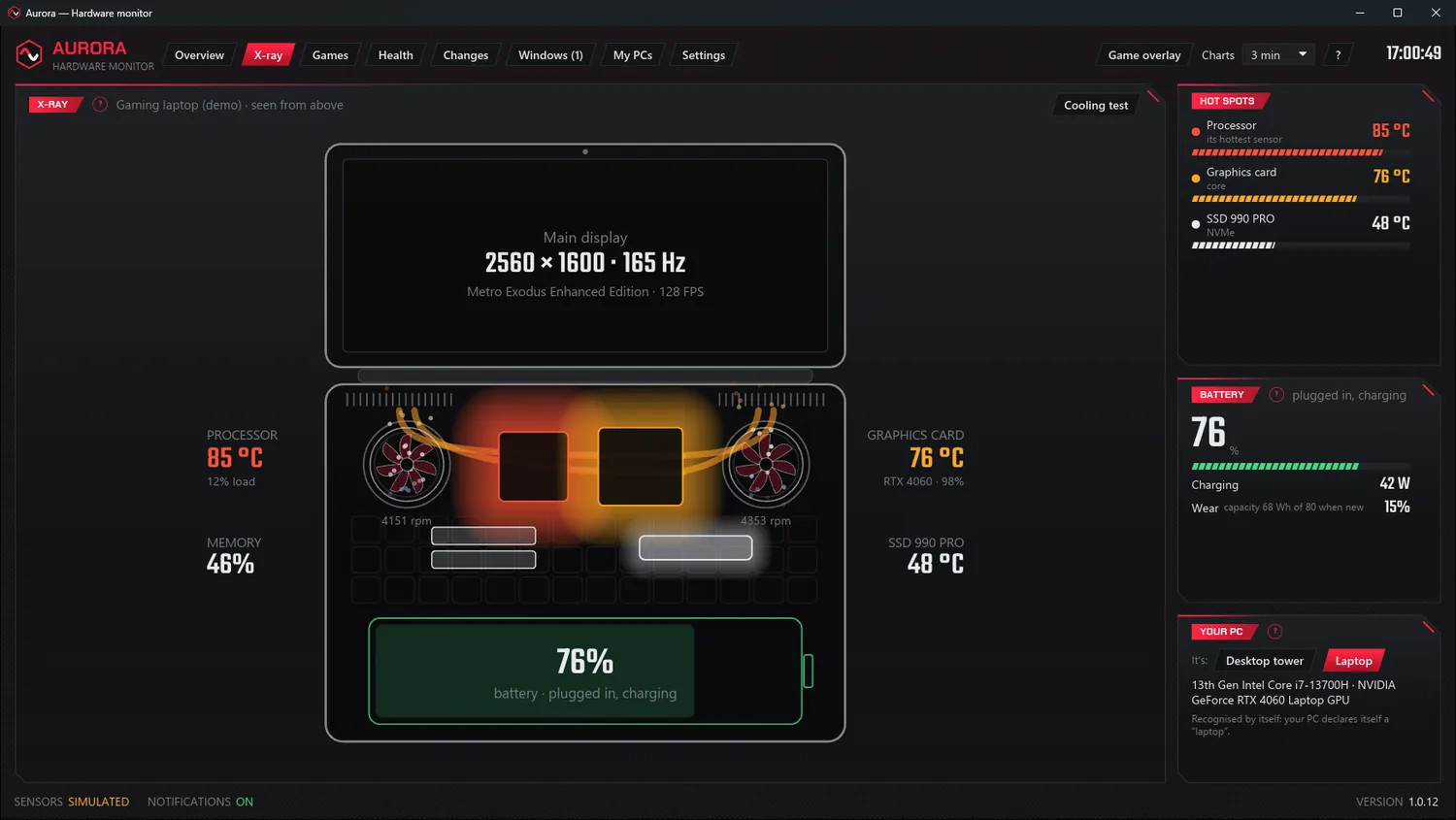
A laptop, seen from above
On a laptop, Aurora draws it open, its keyboard see-through: what heats up underneath, its fans, its memory and its SSD.
- Its battery: its charge, the watts going in or out, the time left and its wear.
- “Your rig” becomes “Your PC”: a tower or a laptop, recognized on its own.
- If Aurora gets it wrong, one click fixes it.
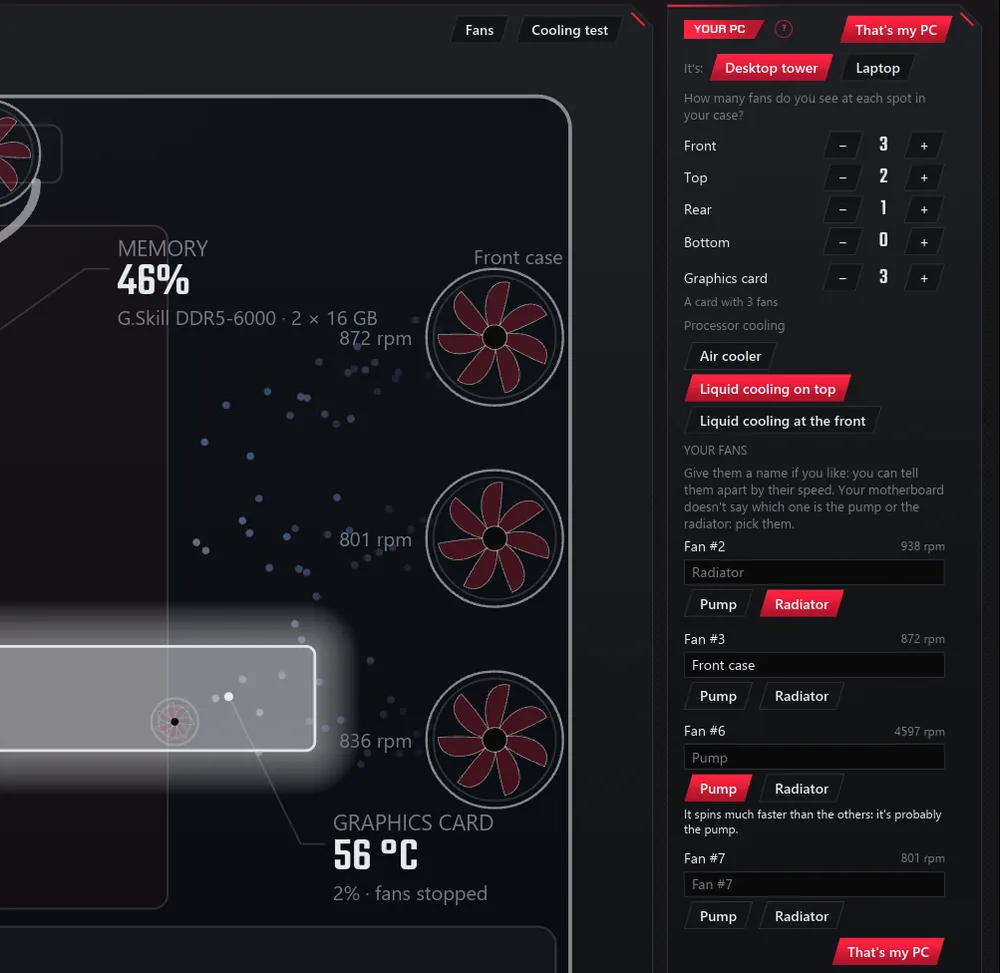
Names for your fans
In “Your PC”, each fan shows its speed, so you can recognize it, and a field for its name.
- “Front case”, “Radiator”: the name shows up everywhere, from the tiles to the Health tab.
- The liquid-cooling pump recognized even when the motherboard doesn't name it: it's the one spinning much faster than the others.
- It always stays with the motherboard: no fan mode ever slows it down.
“At my daughter's, Aurora showed her radiator at 4,600 rpm: it was her liquid-cooling pump. Now Aurora recognizes it on its own, and everything works perfectly.” — Denis
The real reason
When the processor temperature is missing, the Health tab says why instead of blaming the processor: the FACEIT anti-cheat, for example, which blocks the sensor driver.
The pump under watch
Once recognized, the Health tab watches it as a pump: if it stops while the processor heats up, that's an emergency, and it tells you what to do.
Better-informed support
The hardware summary you can attach to a support message now says whether the sensor driver is running, and whether FACEIT is installed: the cause is found faster.
From one PC to another
Send your files between the PCs at home, right inside Aurora. And a speed test as faithful as the well-known ones.
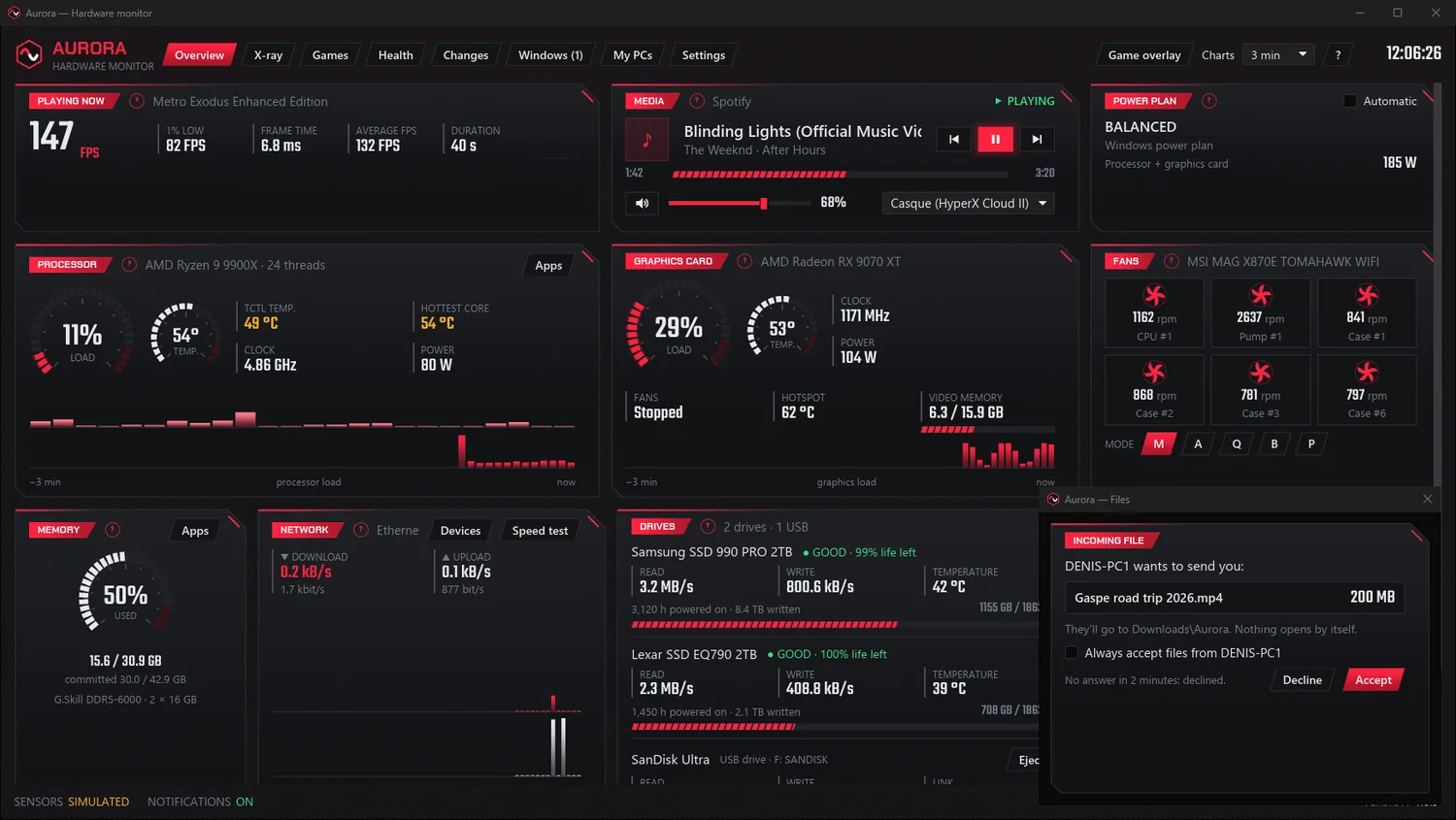
Nothing else to install
In the My PCs tab, one button sends a video, photos or any file to another PC at home.
- A six-digit code the first time, to pair your PCs.
- Encrypted on the way, on your network only: nothing goes through the Internet.
- Each file asks for your OK, and lands in Downloads\Aurora.
“I sent files from my PC to my server right inside Aurora: nothing else to install, and everything stayed at home.” — Denis
A faithful speed test
Four connections at once, like the well-known tests: 1.3 Gbit/s in Aurora, just like on fast.com. The button is now called “Speed test”.
No more ghost drive
Virtual drives, like the one Bitdefender installs, no longer show up: not in Drives, not in the X-ray.
Games, not apps
Wallpaper Engine, Lossless Scaling, OBS Studio and Blender are no longer taken for games: no more overlay popping up while you pick a wallpaper.
Plugged in right, explained plainly
Aurora now checks how your PC is plugged in, and it was reread from end to end to say things more plainly.
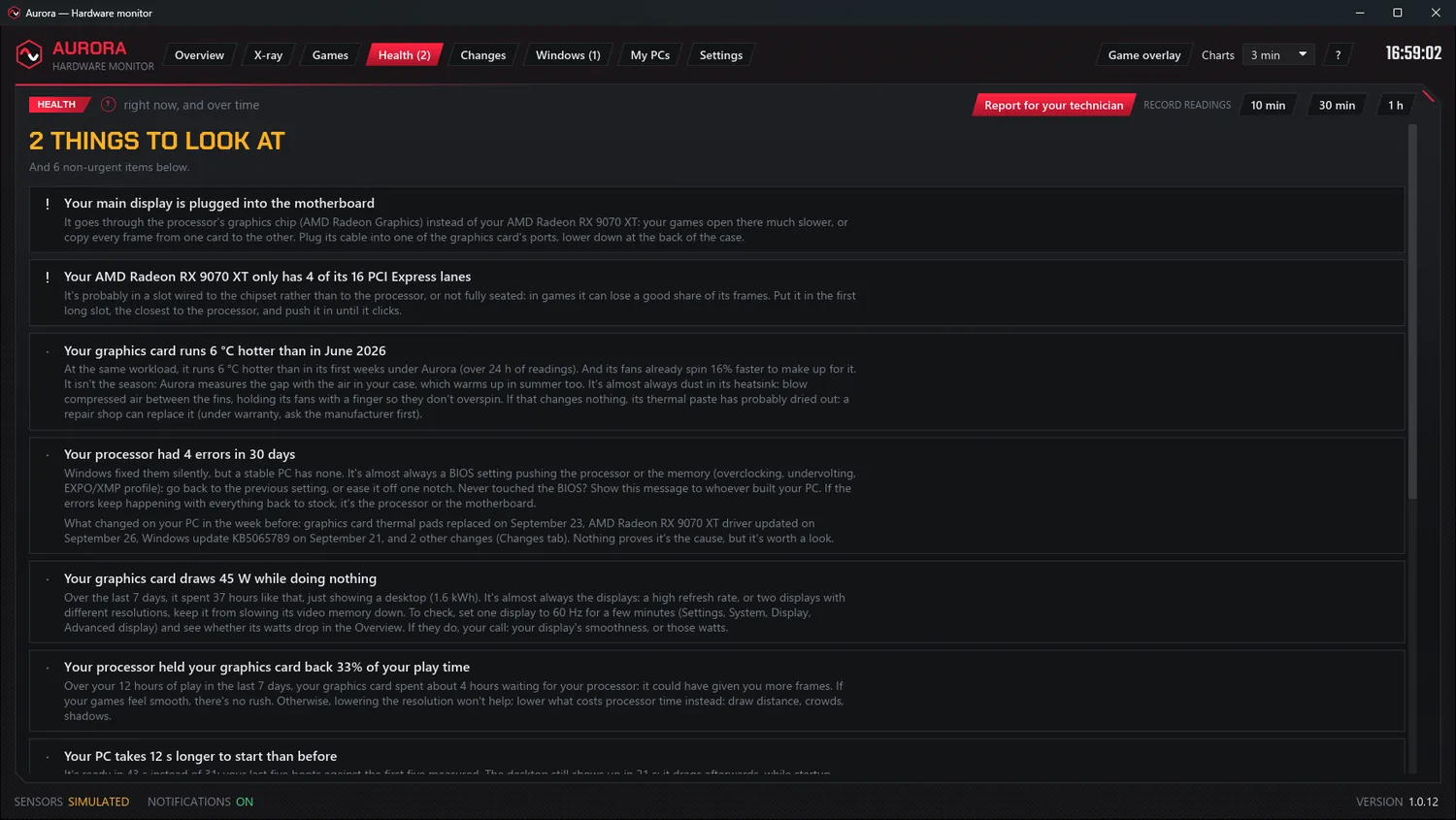
The mistakes you can't see
In the Health tab, Aurora looks at how your PC is plugged in, and tells you what to do.
- Your display plugged into the motherboard instead of the graphics card.
- A display set below the refresh rate it allows: 60 Hz instead of 144, for example.
- A graphics card missing some of its PCI Express lanes: the wrong slot, or a card not fully seated.
“I lowered my display to 60 Hz to try it: Aurora pointed it out in the Health tab. Back at 175 Hz, the note went away.” — Denis
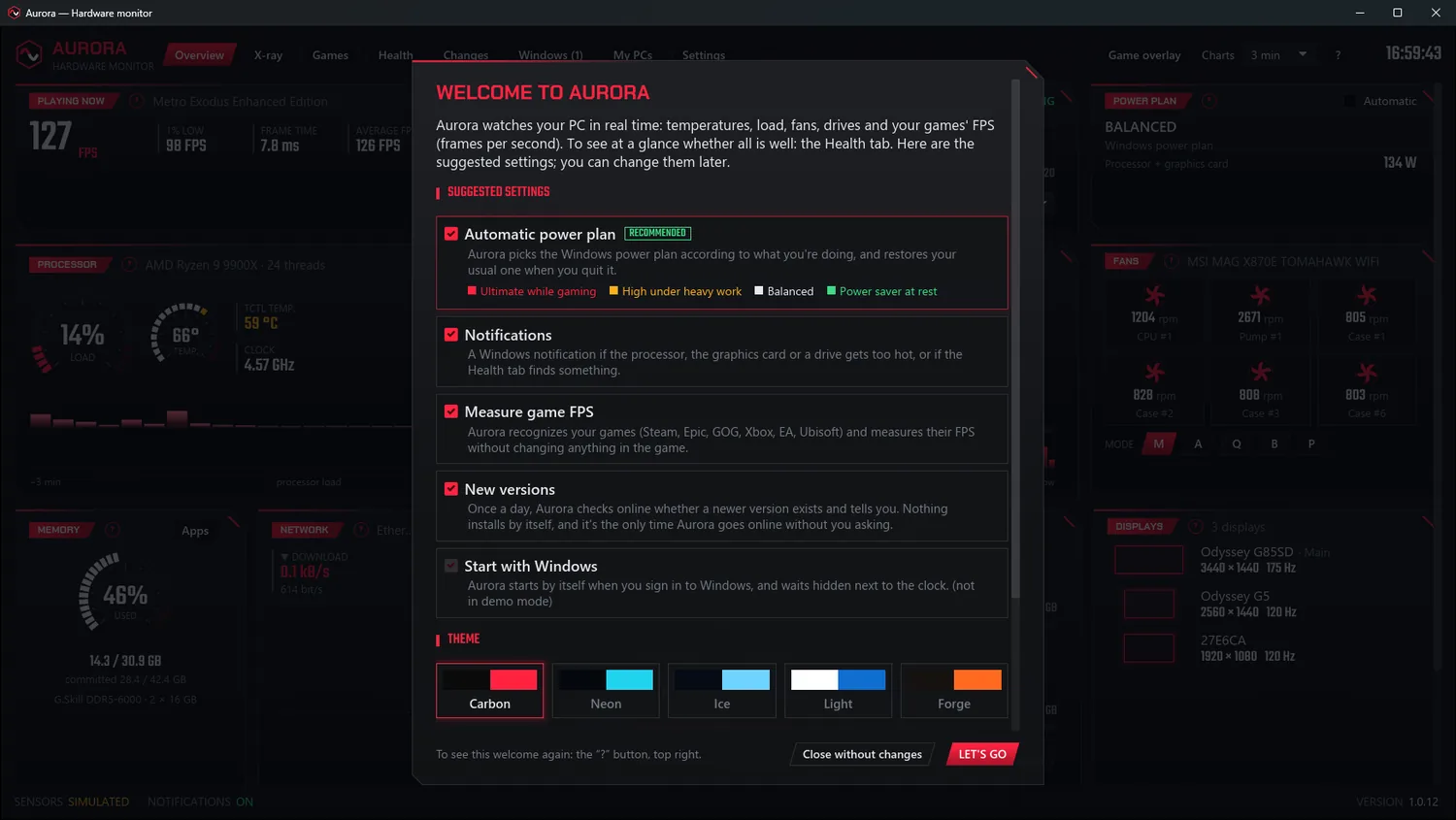
Reread through a beginner's eyes
Aurora was reread from end to end, as if by someone discovering it.
- The Health tab says what to do, and who to show the message to when it's a BIOS matter.
- Shorter help bubbles, and obscure words explained on hover.
- One name for each thing (“Game overlay”), and a welcome screen that introduces the Health tab.
The Stream Deck without sharing
Nothing to check anymore: Aurora serves its readings to programs on your PC, without opening anything to the network. Plugin 1.0.1. See the plugin →
The Health tab counts
“Health (1)”: its name says how many things need your attention, and it only blinks for what's urgent.
Dates that read naturally
“Yesterday”, “on September 25 at 20:15” instead of computer-style dates, and English that reads more naturally.
Your PC, week after week
Aurora already measured everything, every second. It now follows your PC over time: new readings, week-after-week charts, and everything it sees in an Excel file.
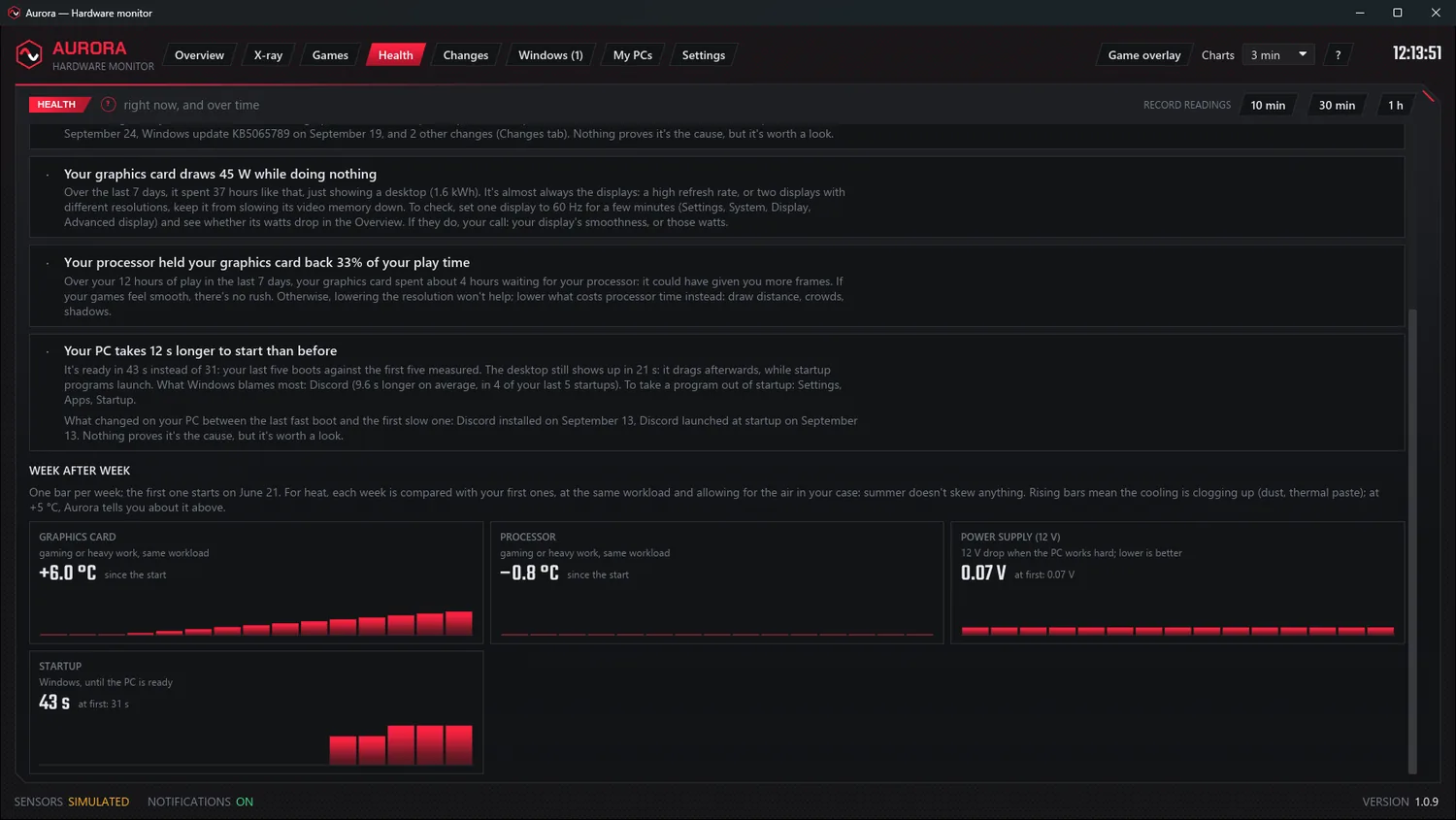
Your PC compared with itself
In the Health tab, one bar per week. Each week is compared with your first ones, at the same workload and allowing for the air in your case: if the bars rise, it's your PC changing, not the summer.
- How warm the graphics card, its hotspot and the processor run: dust, thermal paste drying out.
- Your power supply's 12 V under load.
- How long Windows takes to start, until the PC is ready.
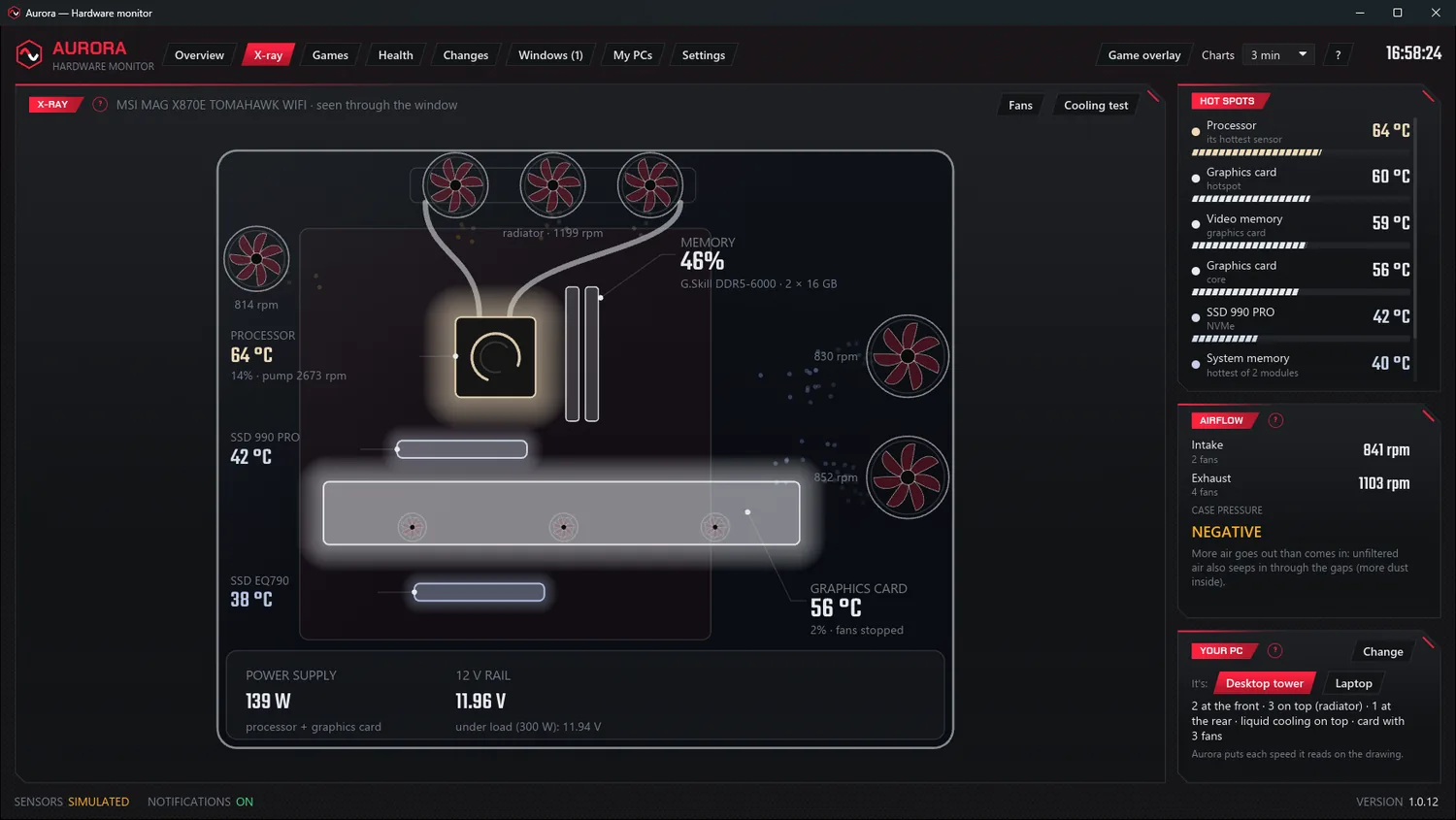
Hot spots, and your power supply's 12 V
The X-ray's hot spots list grows, and the health check keeps an eye on all of them.
- The graphics card hotspot: the hottest spot on its chip, where it throttles.
- The graphics card's memory, and your memory modules when they have a sensor.
- Committed memory, as in Task Manager.
- The 12 V, at rest and under load, if your motherboard measures it.
“I ran OCCT: at 500 W, my 12 V went down to 11.90 V. That is within spec, and Aurora will tell me if it starts to sag.” — Denis
The recorder
Every reading, each second, for 10 min, 30 min or 1 h, in a file that opens in Excel. From the Health tab or the icon menu.
In game
The hotspot in the overlay, as an option, and in each game's summary, with the hottest video memory and the lowest 12 V.
Aurora on your Stream Deck
Seven keys for the Elgato Stream Deck: temperatures, hotspot, loads, memory and FPS. A separate download. See the plugin →